Day, Week, Month, Timeline: Using Calendar Views Right
The same data answers different questions depending on the view. A practical guide to when to switch and why.
Same data, different views
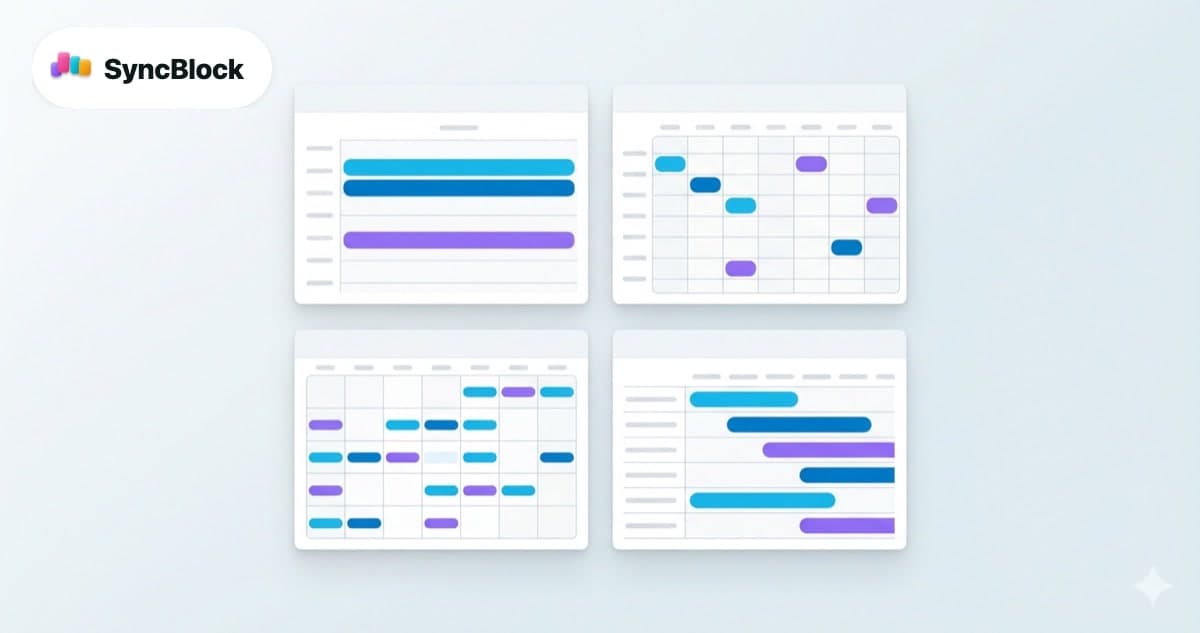
Most people stick to one calendar view. Usually month. But the same events, viewed in month vs. week vs. day vs. timeline, surface completely different information.
Switching views isn't changing the data — it's asking the same data a different question. "What does this month look like?" and "is Tuesday afternoon free?" are different questions, and different views answer them.
SyncBlock offers four views. Below, what each view answers fastest and how to switch between them through your workday.
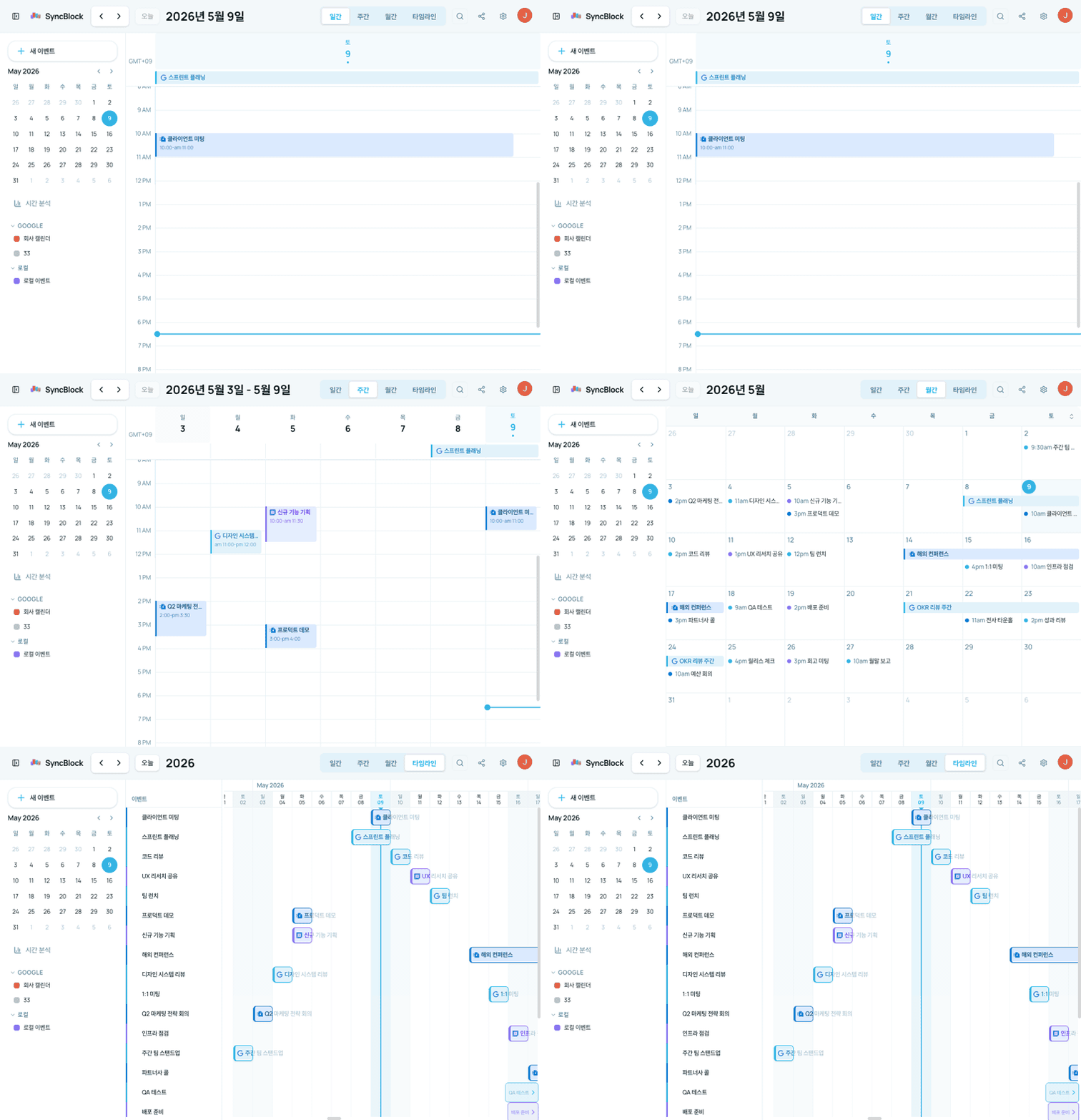
Month view — "the shape of the month"
The most familiar view. A whole month on one screen so you can feel the density and distribution of your events at a glance.
Strong for:
- How busy is the month overall?
- Where are the trips and PTO blocks?
- When are the monthly events (all-hands, deadlines)?
Weak for:
- Is 3 PM today free? — no time slots visible
- How long is this meeting exactly? — only start time fits in the cell
- How much breathing room between two meetings? — no time axis to estimate from
Month view is best as a Monday morning sanity check. Skim it for five seconds to grab the shape, then switch elsewhere for time-level detail.
Week view — "finding the open slot"
Seven days across, time on the vertical axis. The working view for booking, finding gaps, and spotting overlaps.
Strong for:
- Where are the open slots this week? — empty time stands out visually
- Is Tuesday or Thursday lighter? — side-by-side comparison is instant
- Morning vs. afternoon distribution?
Pro tip: in SyncBlock's week view, double-clicking a weekday header (e.g. the "Wed" label) jumps straight to that day in day view. Find the slot in week view, drill into the details in day view — the flow is smooth.
Day view — "just today"
A single day stretched across the full time axis. Strips out noise from other days so you can focus on this one day.
Strong for:
- What's next, and how many minutes until it starts?
- What can I fit between two meetings?
- Right before the afternoon meeting — do I have enough prep time?
Pro tip: open day view right after morning login or right after lunch on a meeting-heavy day, and pre-visualize the shape of the next few hours. Replacing the "5 minutes before" reminder with one quick day-view glance makes you the one driving the schedule.
Timeline view — "project progress"
Not by hour but by day or week — horizontal bars for ongoing items. Think of it as a lightweight Gantt chart. Where the other three views answer "time", timeline answers "duration".
Strong for:
- When does this project start and end?
- Do these campaigns and events overlap as periods?
- How do this quarter's big milestones line up?
Weak for:
- What time exactly does this meeting start? — hour resolution isn't the point
Timeline view shines in weekly reviews and project retrospectives. Questions like "which campaign wraps next week?" or "how does this project line up against the rest?" get answered on one screen.
Switching views with the workday
A practical pattern. Not the only one, but a good starting point.
- Monday morning (sanity check) — month view. Get the shape of the week and month.
- Booking meetings (work mode) — week view. Find slots, check overlaps.
- Right after login / right after lunch (focus prep) — day view. Pre-visualize today.
- Weekly review / project review — timeline view. Discuss and report by duration.
- Friday afternoon (next-week preview) — alternate month and week. Big picture, then slot check.
Don't lock yourself to one view. The trick is switching when the question changes. The switch has to be one click — if it isn't, you'll stop bothering.
Switching views in SyncBlock
All four views are one toggle apart at the top of the calendar. The URL preserves the current view and date, so sharing a link with a teammate opens the same view you intended. Week → day shortcut: as mentioned, double-click the weekday header.
Google, Outlook, and local events all show up in every view, so switching never costs you data. Whichever view you're on, the answer comes from one screen.
Wrapping up
Using views well is half of using a calendar well. Month for the shape, week for the slots, day for focus, timeline for durations — keep this set in your head and the same calendar starts feeling like a different tool.
SyncBlock is free to start, and one login fills all four views with your Google and Outlook events automatically.
More to read
- Safely merging multiple calendars into one view — How to Safely Merge Work and Personal Calendars
- When switching views still shows overlaps — 5 Practical Ways to Prevent Calendar Conflicts