5 Practical Ways to Prevent Calendar Conflicts
Double-bookings keep happening for structural reasons. Here are five settings and habits that fix the structure, not the symptoms.
Why the same person keeps double-booking
Calendar conflicts look like a busy-person problem, but they're usually a structural problem. Work Outlook, personal Google, a side-project calendar — when events live in separate apps, you end up merging them in your head every time. Eventually, one slips.
This guide separates what you can fix with tooling from what only better operating habits can fix. The last point is a candid breakdown of how SyncBlock's automatic conflict detection works, and where it can't help.
1. Bring every calendar onto one screen
The most common pattern: Outlook for work, Google for personal, another Google account for that side gig. Keep them in three tabs and conflict detection becomes a memory game. Asking yourself "wait, was something else there?" every time you book is already a failed setup.
Two common fixes:
- Pull one into the other — subscribe Outlook into Google or vice versa via ICS. Familiar, but ICS feeds typically lag by 30 minutes to several hours, so freshly-booked events stay invisible.
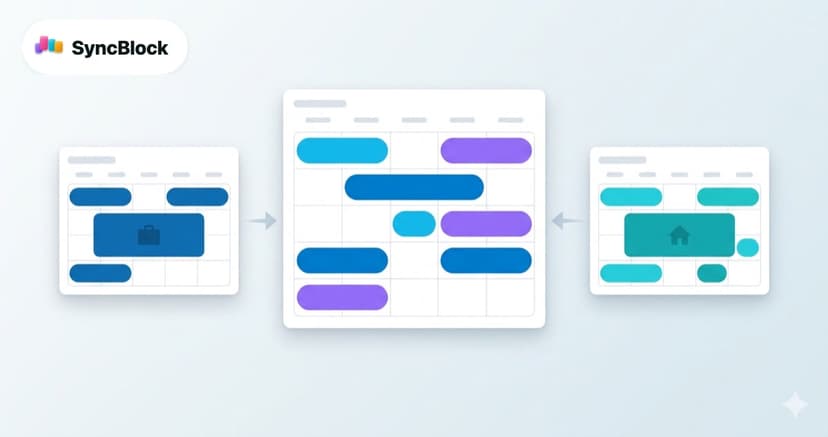
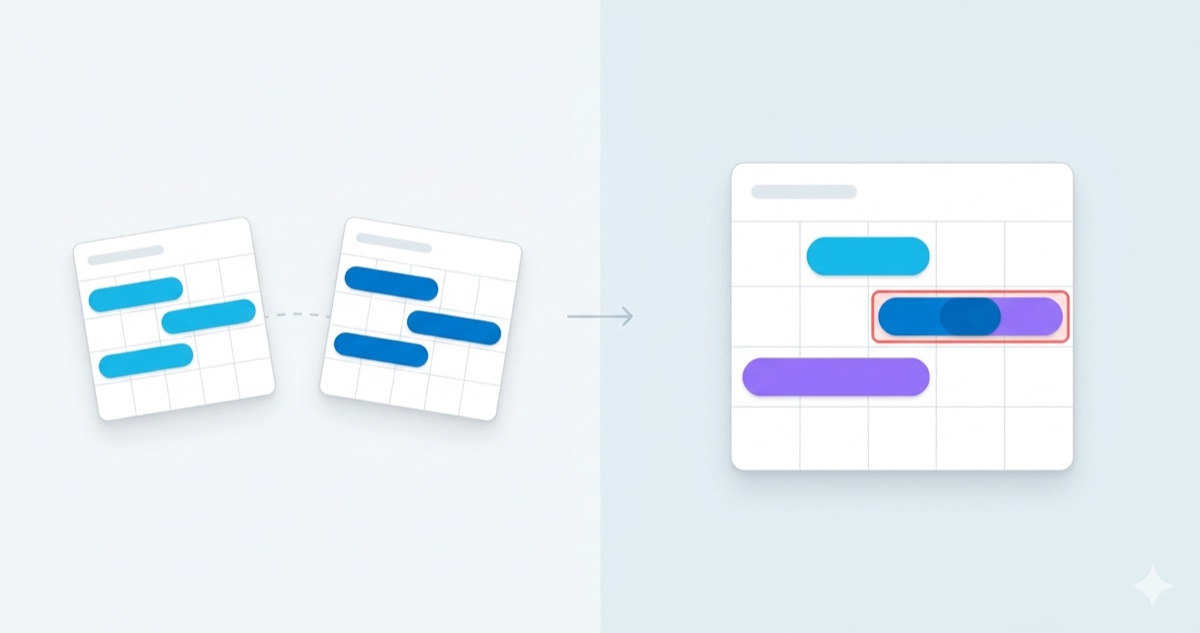
- Layer a unified view on top — leave both calendars where they are, view them together in a separate surface. Originals stay put; only the conflict detection happens in the merged view.
With the layered approach, the moment you add an event anywhere, the conflict shows up on the unified view — no ICS lag, no missed clash.
2. Standardize a buffer between meetings
A meeting that ends at 10:00 followed by one starting at 10:00 is not a system conflict — the times meet exactly at the boundary. In practice, this is the most frequently broken contract: the previous meeting runs five minutes long, or you're still typing notes when the next one starts.
Set team-level defaults:
- 30-minute meetings → 25 minutes (Google Calendar's "Speedy meetings" toggle)
- 1-hour meetings → 50 minutes
- 15-minute buffer between any external meetings
Bake those into your calendar defaults and the gaps appear automatically. You stop having to remember.
3. Treat all-day events as context, timed events as conflicts
If you treat vacations, trips, and conference days the same way as meetings, conflict detection loses its meaning. "This meeting conflicts with your vacation" firing every day trains you to ignore the alert.
The split that works:
- All-day events = context — "I'm on PTO this week", "I'm offsite that day". Useful background for whether to book at all, but not a conflict in itself.
- Timed events = conflict candidates — only meetings and appointments with explicit start/end times count.
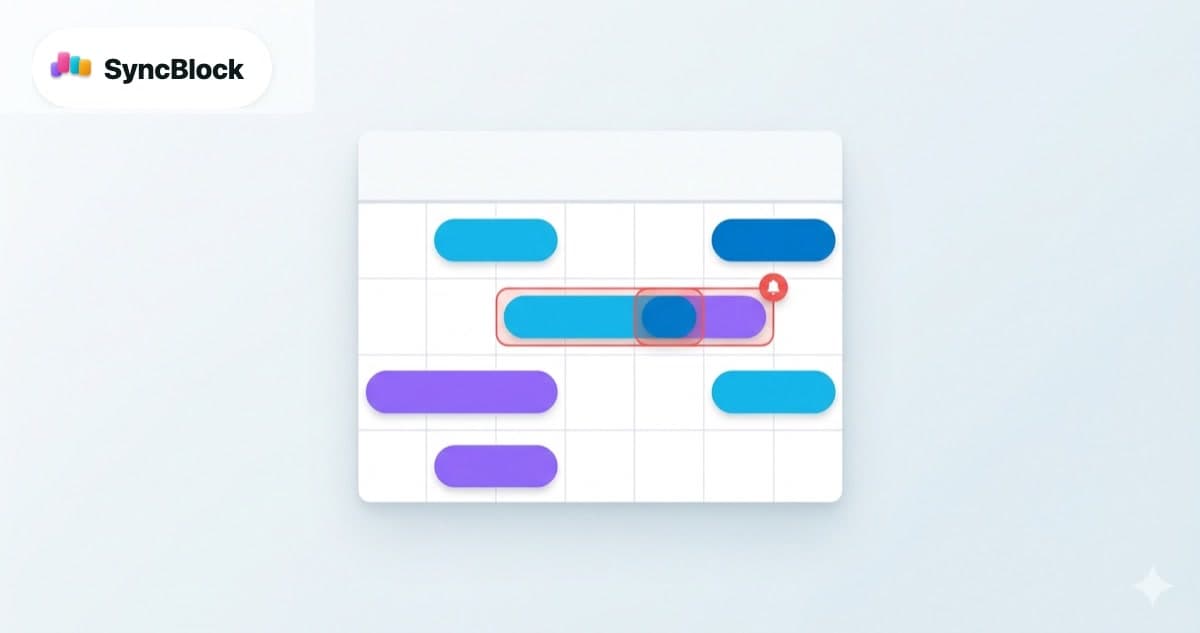
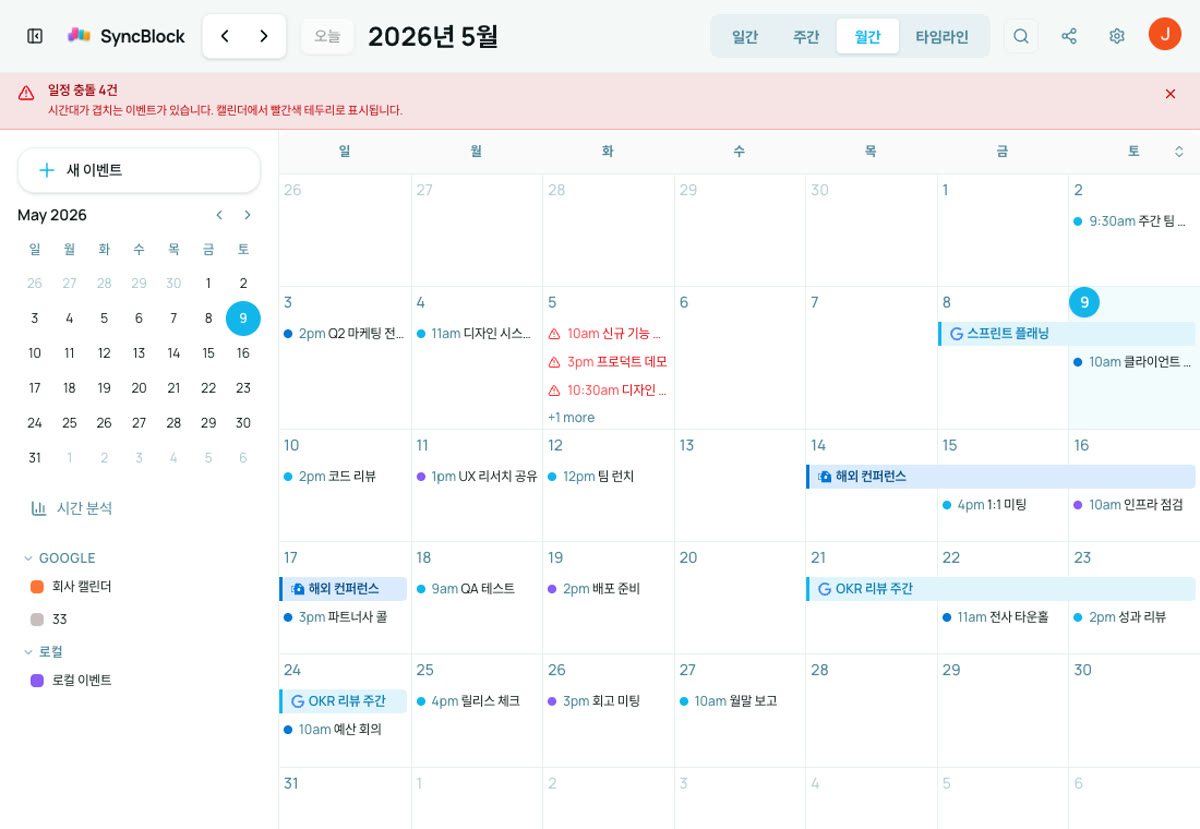
SyncBlock's detector follows this rule. All-day events are excluded from conflict checks; only timed events get the red border when they overlap by even a minute.
4. Clean up "ghost duplicates" from two-way sync
If you run two-way sync between Google and Outlook, the same meeting often exists in both calendars at the same time. To you it's "the same event twice". To the system it's two separate events — and they get flagged as a conflict with each other.
Once real conflicts (two different events overlapping) and ghost conflicts (the same event shown twice) get mixed up, the red flags lose their signal. Two ways out:
- Use a unified view instead of sync — keep the original in one calendar only and pull the other in as "display only". Duplicates never get created in the first place.
- Pick a tool with built-in dedup — events with identical start time, end time, and title (case- and whitespace- insensitive) should be auto-treated as a single event.
SyncBlock takes the second approach. Events that match exactly on start, end, and normalized title are treated as duplicates from two-way sync and excluded from conflict detection. Only real conflicts stay red.
5. Let the tool catch them — humans miss things
Even with the first four habits in place, if you still rely on manually checking "is anything else there?" before booking, something will slip eventually. Tools should catch the conflicts; humans should make the call.
Minimum bar for a tool worth trusting:
- Treats multiple calendar sources as one dataset for comparison (point 1)
- Excludes all-day events automatically (point 3)
- Auto-merges duplicate displays (point 4)
- Flags conflicts visually the moment they happen — at booking time, not minutes before the meeting
SyncBlock is built to satisfy all four. Any timed events that overlap get a red border on both, and the top of the screen shows a "{N} schedule conflicts" banner. It updates the moment you add an event, and clears as soon as the conflict is resolved.
What tooling can't fix
Auto-detection isn't magic. These are the gaps you still have to own:
- Travel time — an 11:00 meeting in one neighborhood followed by a 12:00 in another isn't a system conflict, but it's impossible in practice. Only humans know.
- Prep time — if you need 30 minutes before a talk to set up but never block that 30 minutes on your calendar, no tool can detect that you're overbooked.
- Informal commitments — agreements made over chat that never make it onto a calendar can't be checked by anything.
These are solved only by the discipline of putting things on the calendar in the first place. The tool can only check the data it's given.
Wrapping up
Conflicts are usually a structure problem, not a willpower problem. Scattered calendars, no buffer, mixed all-day and timed events, duplicated displays — anyone running that setup is going to double-book eventually.
The fastest structural fix is to see every calendar on one screen and turn on automatic conflict detection. SyncBlock connects Google and Outlook with a single login and applies the detection rules above by default. Free to start.
More to read
- The flow of unifying Google and Outlook in one view — Google Calendar + Outlook, Managed in One View
- When sync itself isn't working — Google Calendar and Outlook Sync Not Working: A Step-by-Step Fix