CalendarProductivity
Google Calendar + Outlook, Managed in One View
A practical guide to unifying multiple calendars so you never double-book again
April 18, 20265 min read
The problem with running two calendars
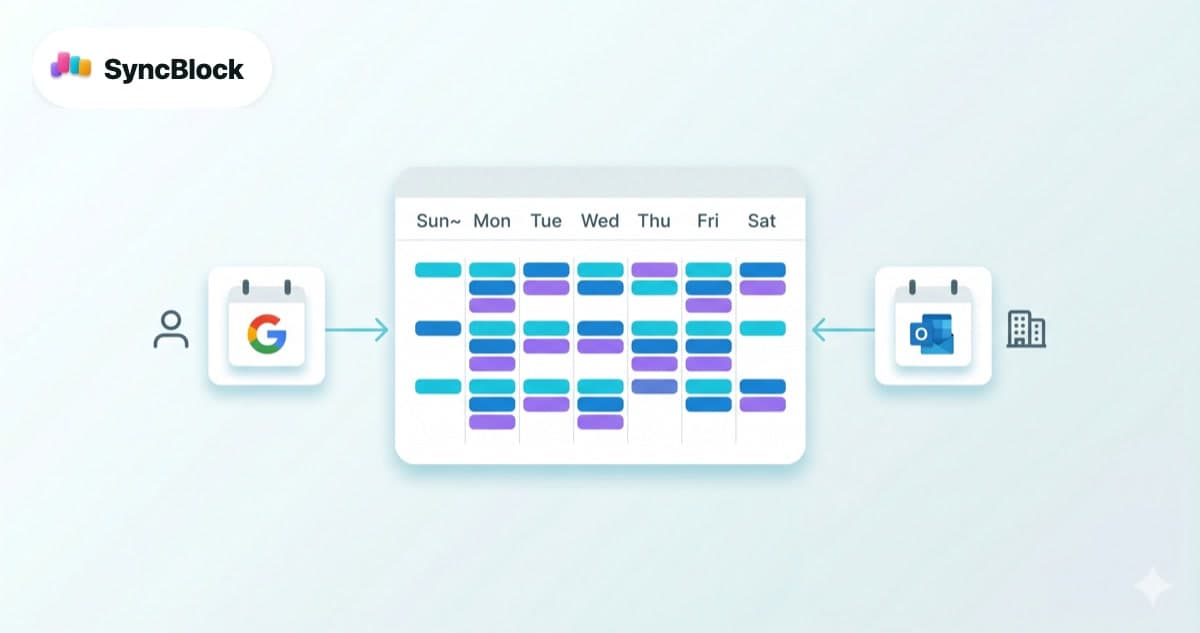
You use Outlook at work and Google Calendar for personal stuff. If that sounds familiar, you've probably hit one of these before:
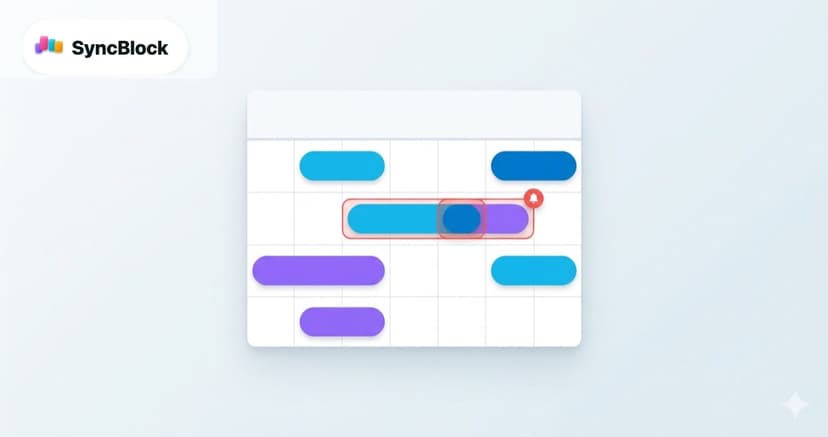
- Finding out too late that a work meeting overlaps with a personal plan
- Jumping between two or three apps just to see what your day looks like
- Forgetting which calendar you put an event on in the first place
A calendar is supposed to help you manage time. Spending time managing the calendar itself defeats the whole point.

Existing workarounds and their limits
People usually try one of these:
- Subscribe to the Outlook calendar from Google — read-only, and the sync can lag by hours.
- Import Google Calendar into Outlook — same one-way problem, so keeping both in step is hard.
- Zapier / IFTTT automations — fiddly to set up and prone to creating duplicate events.
Each of these falls short of the real goal: seeing and managing every event from one screen.
How SyncBlock solves it
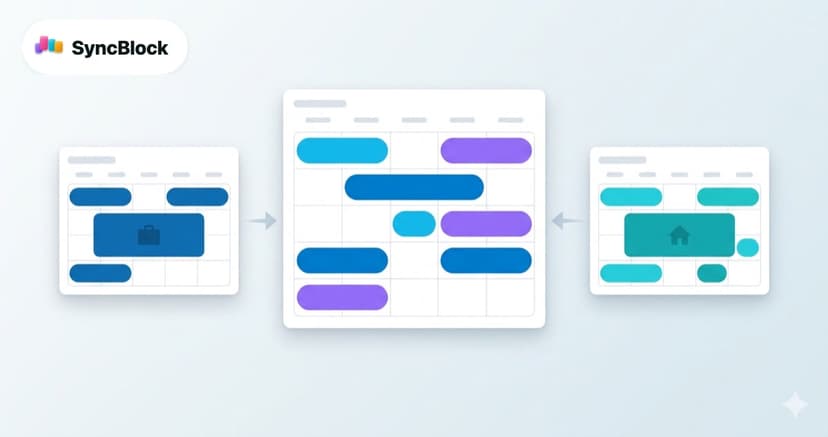
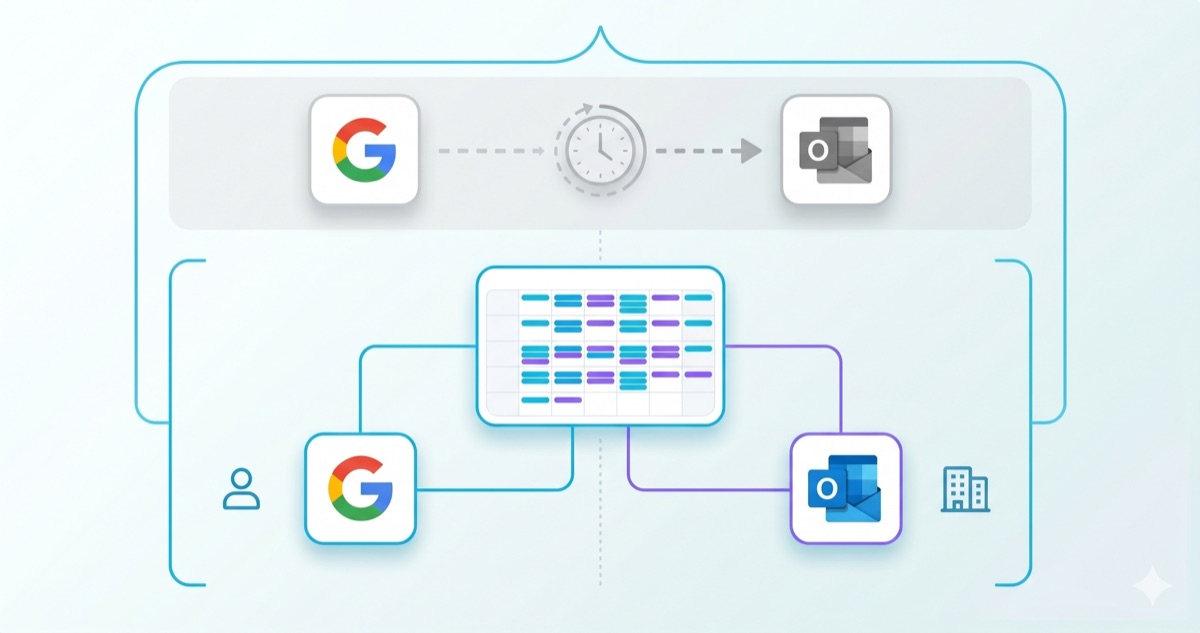
SyncBlock pulls Google Calendar and Outlook into a single calendar view. The idea is simple:
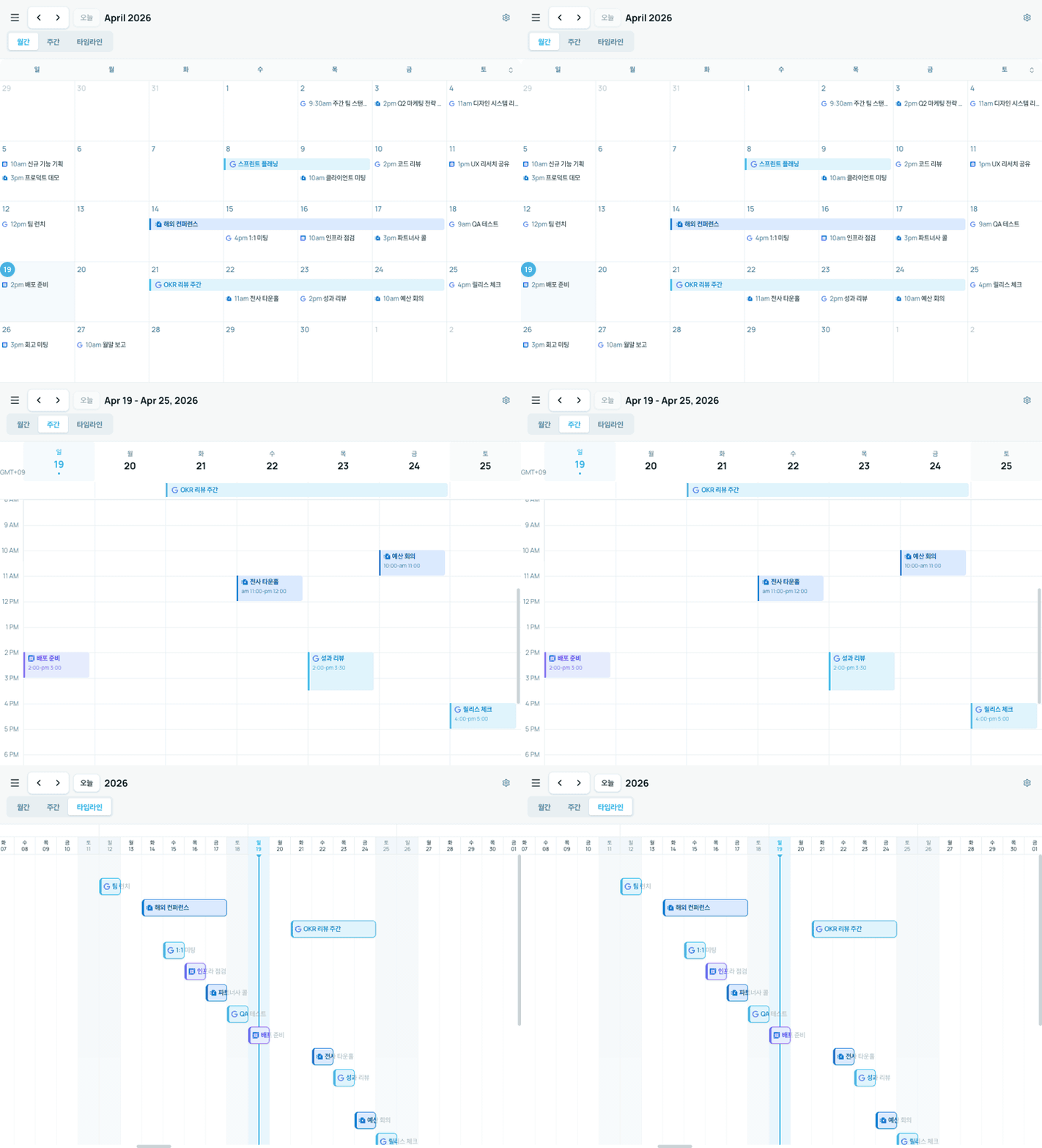
- One screen, every event — Google, Outlook, and local events sit side by side in the same calendar. Each source has its own color, so you can tell at a glance where an event lives.
- Create and edit from anywhere — events you make in SyncBlock land directly in the source calendar. No waiting for a sync to catch up.
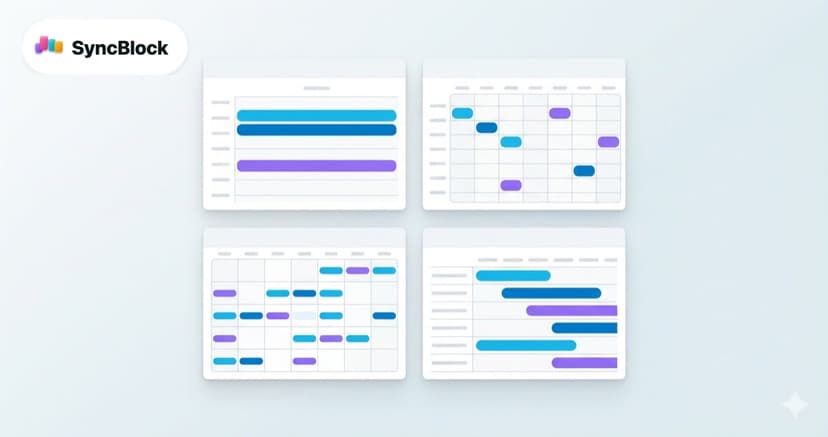
- Switch between month, week, and timeline — same data, different lenses. Month for the big picture, week to focus, timeline to see how projects flow.
Five minutes to get started
- Sign up for SyncBlock (with Google or Microsoft — one click)
- Connect your additional calendars in settings
- That's it. Every event, one screen.
No complex setup, no third-party tools — just log in and start using it. It's free to get started, so try it and see the difference yourself.