How to Safely Merge Work and Personal Calendars
You want one view, but worry about leaks, sync accidents, and IT policy. Five principles that let you merge without mixing.
You want to merge — but something feels off
Outlook for work, Google for personal. The most common combo, and yet most people hesitate to actually merge them. The hesitation usually comes down to five worries:
- Information leakage — work meeting titles and attendees flowing to an outside tool
- Privacy exposure — doctor visits and family events visible to coworkers
- Sync accidents — getting burned once by lost or duplicated events leaves a scar
- IT policy violations — uncertainty about whether external services are even allowed
- Source confusion — once merged, telling work events from personal ones gets fuzzy
All reasonable concerns. But almost all of them can be avoided by choosing the right way to merge. This piece lays out five principles for doing it safely.
First: there are two paths to "merging"
Before the principles, the distinction. The same word "merge" covers two very different risk profiles.
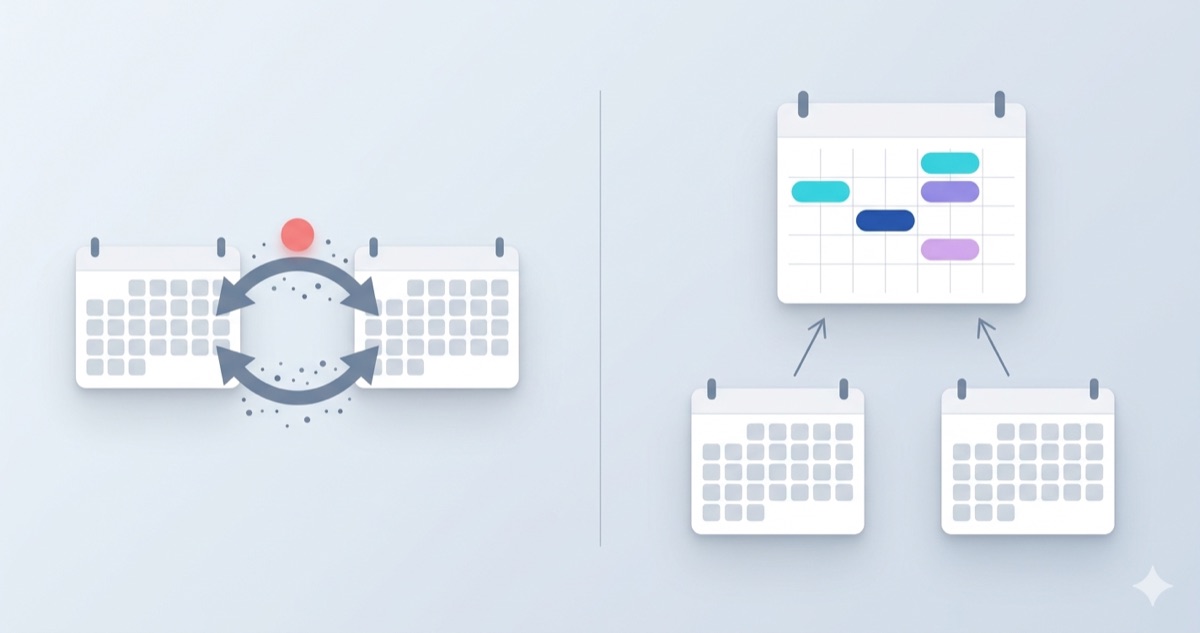
- (1) Two-way sync — events created in one calendar get copied to the other. You only need to look at one app, but actual data moves between two systems. That movement is where every sync accident and policy violation comes from.
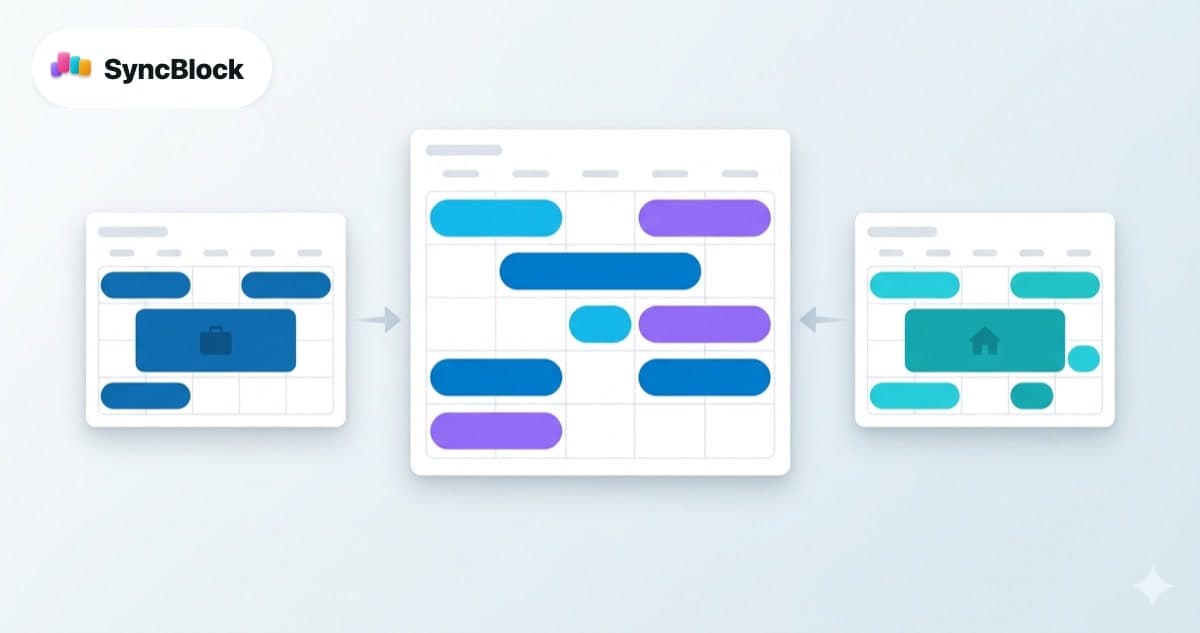
- (2) Unified view (display layer on top) — both originals stay where they are; a separate surface displays them together. No data flows between systems, so sync accidents are structurally impossible.
If you want to merge safely, the answer is almost always (2). The five principles below assume the unified-view approach.
1. Keep the originals where they are — don't move data
The biggest risk is when work events are actually copiedto a personal cloud or vice versa. Once a copy exists, you inherit the third party's terms of service, security exposure, and legal burden.
A unified-view tool reads from each calendar over OAuth and displays the data on screen. Nothing gets written back to either calendar, and nothing gets persisted to a separate database. Close the screen and the session data is gone.
That distinction matters during IT review. If you can answer "does this store company data externally?" with "no, it only displays", your odds of approval go up sharply.
2. Keep sources visually separated — color and icon
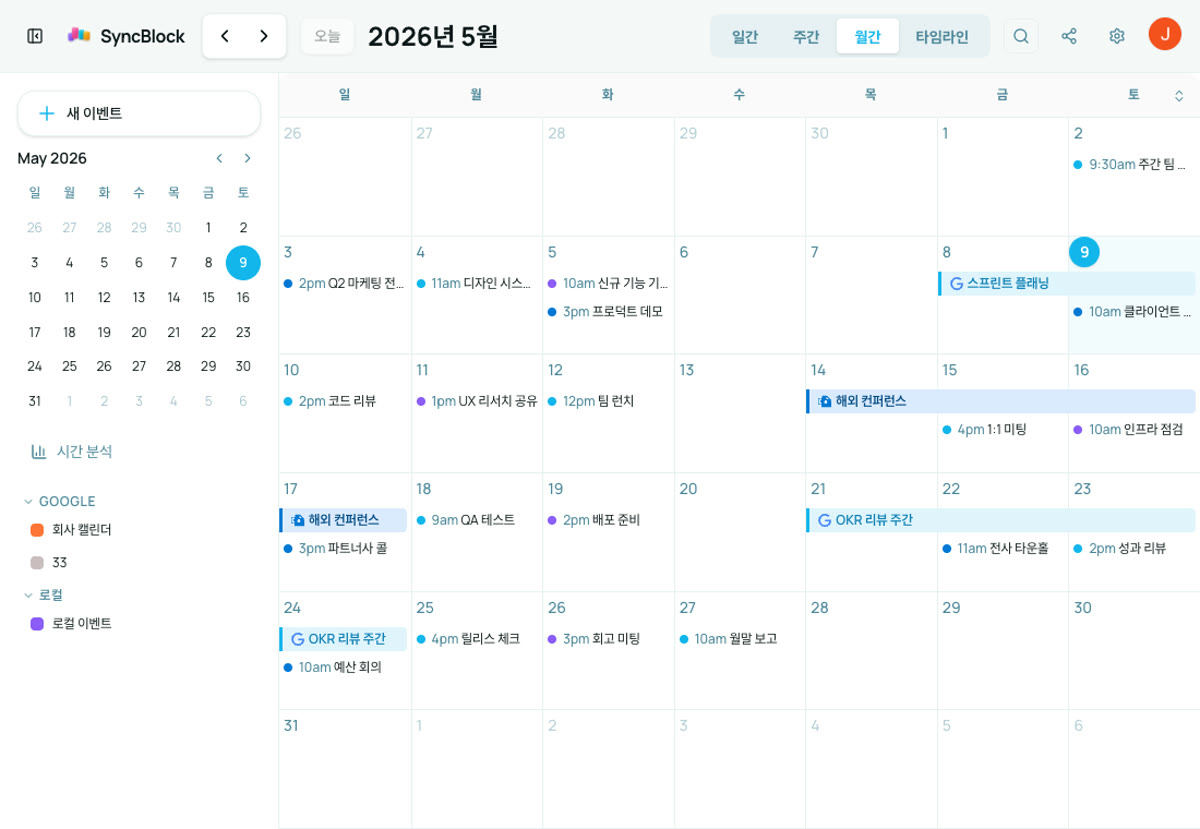
Once you merge, the most common mistake is acting on the wrong context — sending a personal-style reply on a work invite, or booking a personal appointment in a work meeting room. The fix is to make the source obvious at a glance:
- Per-source default colors — Google one tone, Outlook another, local events a third
- A small source icon next to each event — G/O badges so colorblind users aren't left out
- Per-calendar color overrides — Google's 11 color IDs and per-calendar colors should carry through, so within work alone you can split "team meetings" from "1:1s"
SyncBlock applies all three by default. Google, Outlook, and local events get different colors and icons automatically — no setup needed.
3. Toggle visibility based on context
Merging isn't always the right state. After hours, you might not want to see work events. During a meeting, you don't want personal items visible. Calendar-level show/hide togglesmatter for this reason.
Practical patterns:
- Work hours — both on. Conflict detection and time-block comparison active.
- After hours — work calendar off. Personal-only mode.
- Right before an external meeting — personal calendar off. Avoids accidental privacy exposure when sharing your screen.
- On vacation — work calendar off. Notifications and visual cues both muted.
The toggle has to be one-click. If it's buried in settings, you'll stop using it.
4. Check your company's IT policy first
Even a technically safe tool is unusable if your company forbids external connections. Before you start, verify:
- OAuth external app policy — if your Microsoft 365 / Google Workspace admin blocks external apps, login itself fails
- Scope — does the tool ask for "calendar read" only, or for "write" or even "full mail access"? Read-only is the safe one
- Data storage policy — does the service persist event content to its own DB, or only display? If it stores, where and for how long
- Region — some companies forbid data leaving the EU/Korea/etc. Verify the tool's data processing location
SyncBlock requests calendar-read scope only and does not persist event bodies to a separate database. If you need a policy review document, email contact@sync-block.app and we'll send one.
5. Make changes in the original calendar
It's tempting to do everything from the unified view, but that reintroduces risk. The rule is simple: view in one place, change in the original.
- Booking work meeting rooms / Teams meetings — directly in Outlook
- Personal family appointments / recurring items — directly in Google Calendar
- Lightweight memo-style events — in the unified view's local calendar (lives only inside the tool, never reaches either system)
With this discipline, the work/personal boundary holds at the operational level too. You don't end up with a unified-view event that mysteriously landed in your work calendar.
Summary: the safety checklist
Use this whether you're picking a tool or auditing one you already use.
- Does it display only, never copy events out?
- Does it auto-distinguish color and icon per source?
- Does it offer per-calendar show/hide with one click?
- Does it ask for read-only scope? (Asking for write or mail access is a red flag.)
- Is the workflow built for changing things in the original?
Getting started with SyncBlock
SyncBlock is built to satisfy all five from day one. Connect your Google and Outlook accounts via OAuth, and events from both show up on one screen with per-source color and icon. Originals stay in their respective services, and per-calendar visibility is toggled from the left panel with one click. Free to start.
More to read
- Once you've merged, watch out for overlaps — 5 Practical Ways to Prevent Calendar Conflicts
- The flow of seeing both in one screen — Google Calendar + Outlook, Managed in One View