From Event to Task: Calendar and To-Do on One Screen
Splitting your calendar from your task list dilutes both. The simple shift of putting tasks inside events changes the whole flow.
Calendar in one app, tasks in another — something falls through
Calendar in Google or Outlook, tasks in Things, Todoist, or Notion. Each tool is great on its own, but bouncing between them keeps producing the same problems:
- Action items decided in a meeting never make it onto the calendar — and get forgotten
- Tasks in your to-do app lose context: which meeting or project did this come from?
- Right before a meeting you remember "did I prep this?" — but you can't find where you wrote it
- Tidying both apps after every meeting is annoying enough that you stop doing it
The simple fix is to put calendar and tasks on the same screen. More precisely — create tasks "inside" events. This piece walks through five ways that one shift changes the flow.
1. Context stays with the event — information doesn't leak out
Write a meeting's action items in a separate to-do app, and a few weeks later you've lost which meeting it came from. You end up digging through notes or asking a teammate.
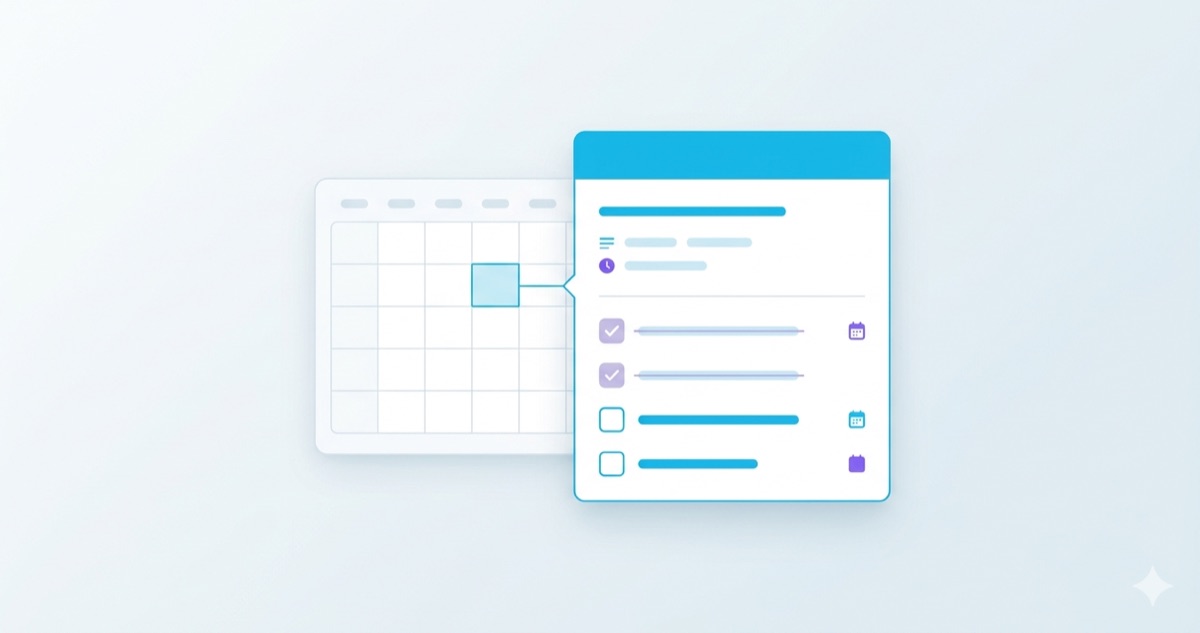
Pin the same items as subtasks inside the meeting event, and the context — "this is followup from Tuesday's marketing sync" — is preserved by location alone. The meeting title, attendees, and notes sit right next to the task. One click rebuilds the whole context.
2. Event date and task due date are different — track both
A point most people miss. A meeting being on Tuesday doesn't mean every action it produced is also due Tuesday. The work usually spreads across the next few days.
A decent tool lets each subtask have its own due date, separate from the event:
- "Pull together kickoff materials" — meeting Tuesday, due Thursday
- "Send client quote" — meeting Monday, due Friday
- "Write retro notes" — meeting Friday, due next Monday
SyncBlock's subtasks support independent start and end dates. The meeting is one cell, but the work it produces gets to live across its own days.
3. Progress lives in checkboxes — "how closed is this meeting?"
Say a single meeting produces five followup items. In a separate to-do app, those five get scattered among everything else, and you can't easily tell "how much of this meeting is still open".
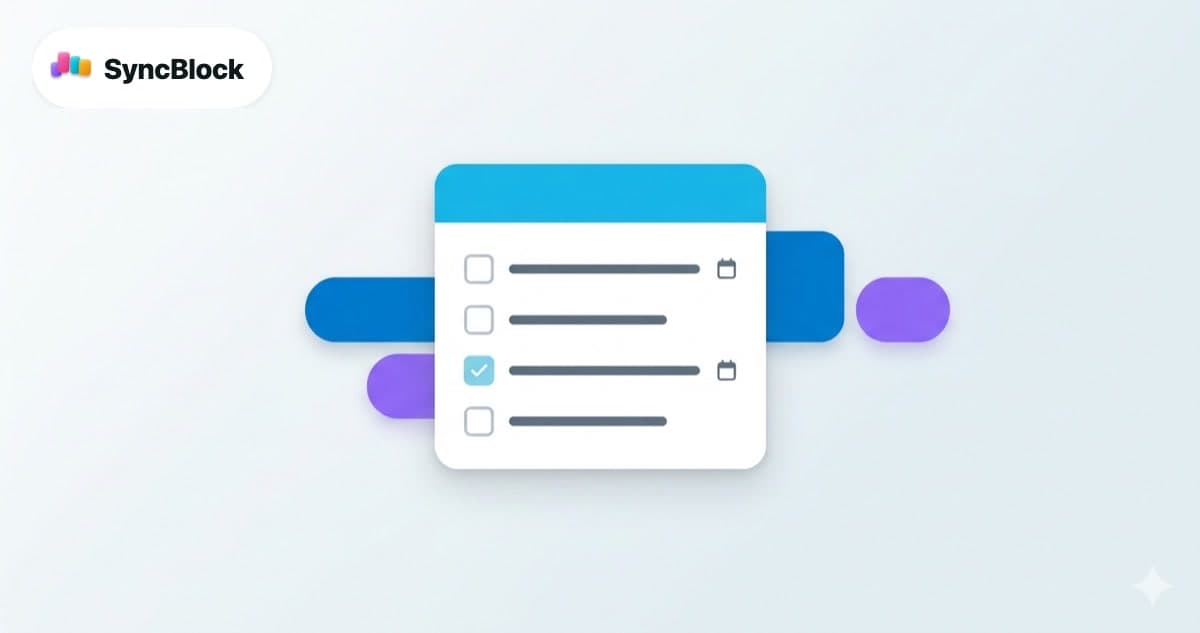
Inline checkboxes change that. Open the event and you see the status of its tasks in one row. 3/5 done? 60% closed. 0/5? You haven't started. That single signal makes it natural to know which meeting's followup to tackle next.
4. Timeline view — see project-level progress alongside
For long-running projects there are many meetings, each producing several tasks. Looking only at individual meetings, you lose the project's overall shape.
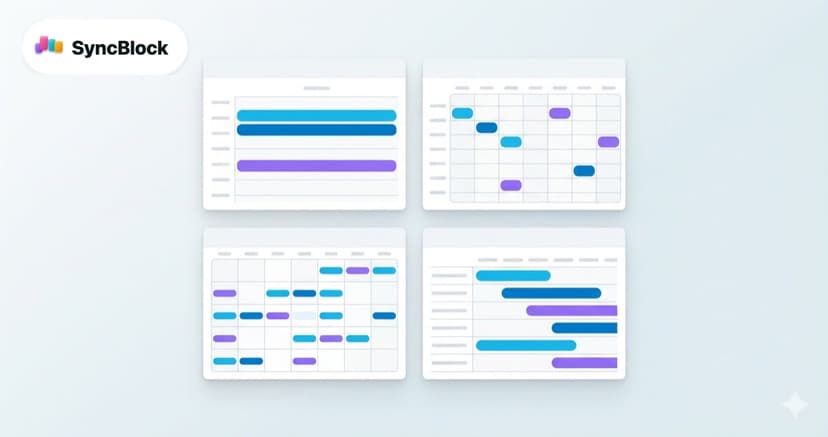
Timeline view answers that. Events list down the left panel, and expanding any event shows its subtasks as small horizontal bars on the timeline. Which task from which meeting ends when, and what's left until the project closes — all in one view.
This view is impossible with a separate to-do app — only achievable when calendar events and tasks share a single data model.
5. Drive input cost to nearly zero — that's how habits form
The most important operating principle. To actually log followups the moment a meeting ends, the input has to take roughly one second. Open another app, pick a project, set a due date… and you're already telling yourself "I'll tidy this up later" — meaning never.
The practical bar:
- Click the event → start typing — no extra screen transitions
- Default due date is "none" or today — set it explicitly only when needed
- Add and complete via keyboard alone — your hand never leaves the keys
- Server sync is background — instant local feedback, no waiting on responses
SyncBlock makes all four the default. Open an event popover, hit enter, and the first subtask is in.
The 1-minute end-of-meeting habit
The single most effective habit: spend the last minute of a meeting capturing actions. Once the meeting ends and you're into the next thing, the actions fade fast.
- Last 1 minute — keep the screen share up, open the calendar
- 30 seconds — type 3–5 agreed actions as subtasks
- 30 seconds — set rough due dates and close
Once the routine sticks, "wait, what was I supposed to do?" disappears. Every next step is pinned inside the meeting it came from.
Wrapping up
Adding more tools isn't the answer. The very fact that calendar and to-do live in different apps is what costs you the context. Create the task inside the event, close it from there— that one shift is the fastest way to use both your calendar and your task list better.
SyncBlock combines Google and Outlook events in one view and provides subtasks, due dates, and checkboxes inside every event. Free to start.
More to read
- The view guide that pairs well with subtasks — Day, Week, Month, Timeline: Using Calendar Views Right
- Before merging tasks, merge calendars safely — How to Safely Merge Work and Personal Calendars