Google Calendar and Outlook Sync Not Working: A Step-by-Step Fix
Diagnose the root cause and walk through the fixes — and when the same issue keeps coming back, consider a structural alternative.
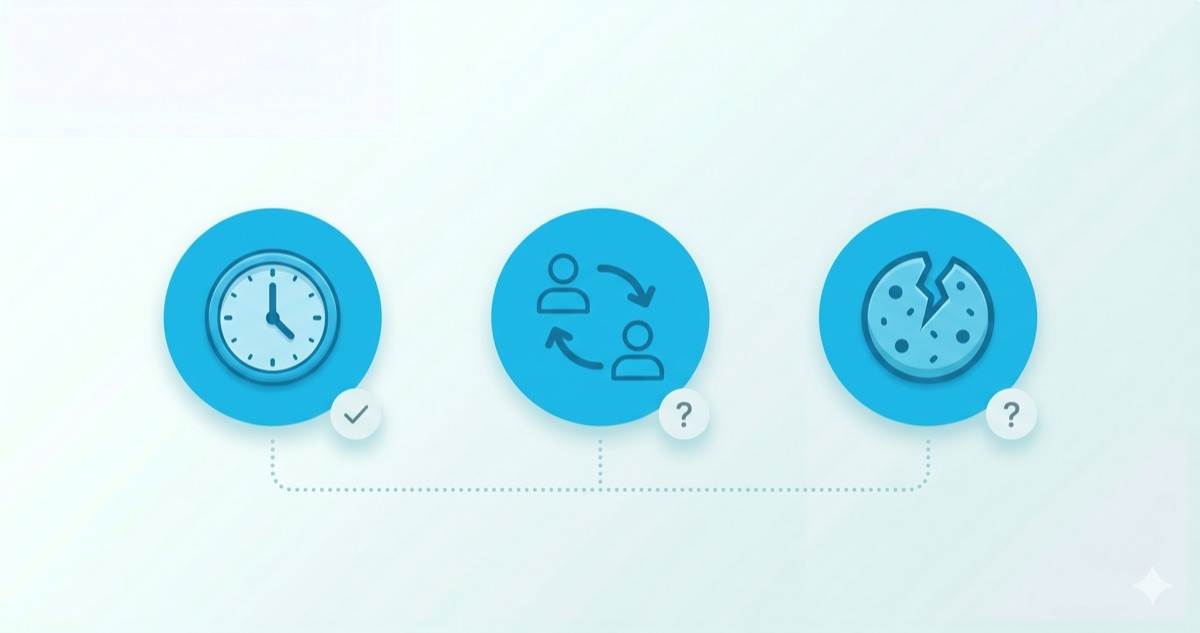
First, check these three things
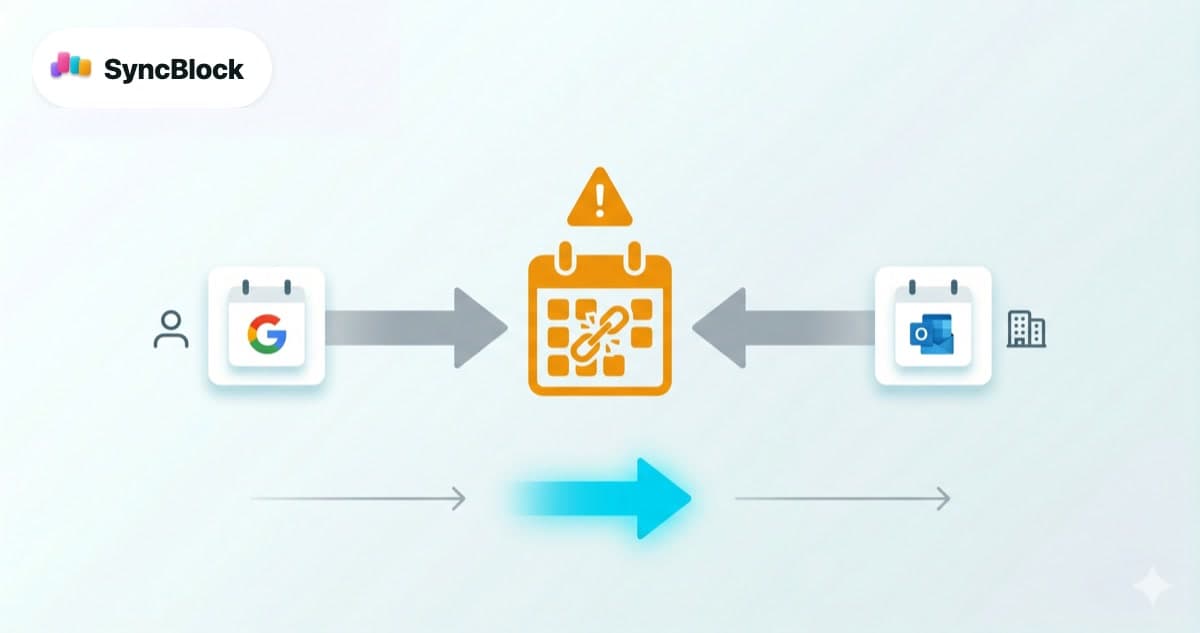
When Google Calendar and Outlook feel out of sync, the cause is almost always one of three things. Check these before touching any settings.
- Sync interval — subscription-based feeds (ICS) can take hours to update. A newly added event not showing up immediately doesn't mean it's broken.
- Signed-in account — switching between work and personal accounts makes it easy to lose track of which calendar you're looking at.
- Cache and cookies — stale tokens can leave you viewing the calendar with an expired session. Try an incognito window first.
Fixes by cause
1. Permissions and login
This is the most common culprit. If you subscribed to Outlook from Google and the events stop updating, or you connected Google to Outlook but no events are showing, you're likely here.
- Google Account → Security → Third-party access: confirm the Outlook connection is still active
- Outlook (Microsoft 365) → Privacy settings: re-authenticate the connected Google account
- If you changed your password recently, most existing connections are broken — reconnect them
2. Cache, cookies, and extensions
Browsers sometimes render the calendar from a stale cache, which can look exactly like "sync is broken."
- Chrome: Settings → Privacy and security → Clear browsing data → select only "Cookies and other site data"
- Compare against an incognito window to see if ad blockers or security extensions are blocking Google API requests
- On mobile apps, clear the app cache and sign in again
3. Firewall and network
Some corporate networks block specific domains. Google Calendar talks to `apis.google.com`; Outlook uses `graph.microsoft.com` and similar endpoints for sync.
- Retry from a personal hotspot — if it works, it's the work network
- Try with a VPN on to check for regional restrictions
- Review outbound firewall rules on Windows or macOS
4. Event visibility settings
If sync itself works but specific events don't appear, the event's visibility is likely set to "Private." Visibility can only be changed on the source side.
- Google Calendar: open the event → change to Default → save on the source calendar
- Outlook: open the event → Categorize → verify Public/Normal
Still stuck? The limits of one-way sync
If you've worked through all of the above and the problem keeps coming back, the root cause probably isn't a misconfiguration — it's a limitation of the approach itself.
- ICS subscribe — read-only, with update delays of up to 24 hours. Edits on the source propagate, but changes on the subscriber side never flow back.
- Import — a point-in-time snapshot. Later changes don't sync, and duplicate events can pile up.
- Zapier / IFTTT automations — complex rules, and recurring events often produce duplicates. Paid tiers add limits too.
If you want to set up an ICS subscription correctly from scratch, see how to add an Outlook calendar to Google Calendar for the step-by-step walkthrough.
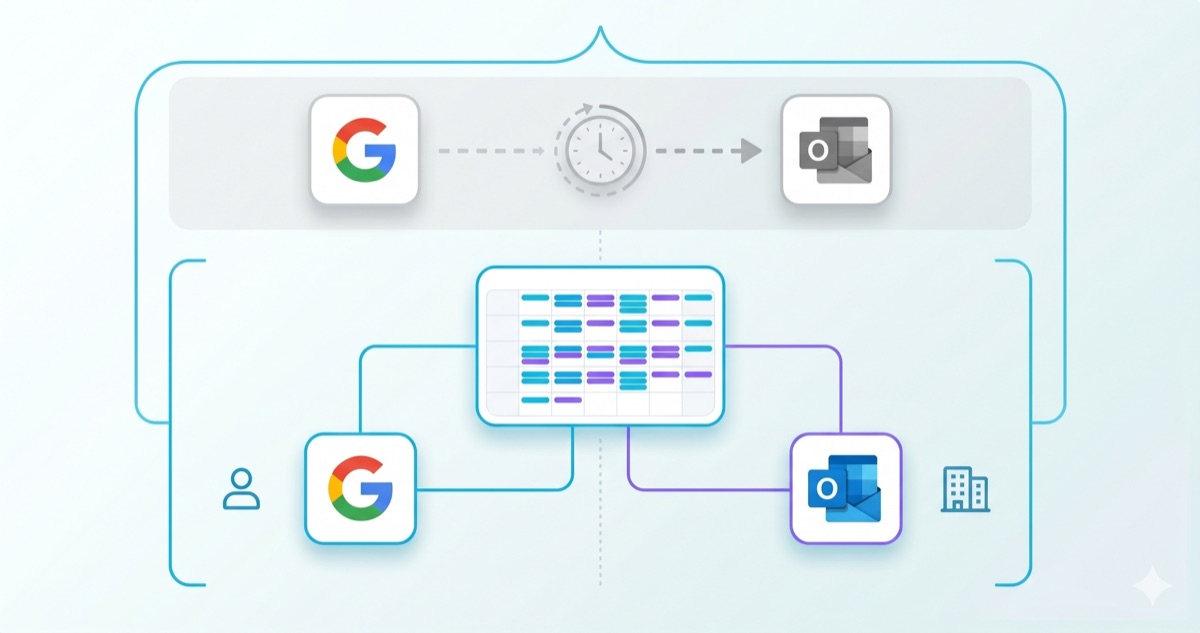
In short, there's no officially supported real-time two-way sync between Google and Outlook. You either pick one as the source of truth and use the other for reference, or you skip sync entirely.
An alternative that skips sync entirely
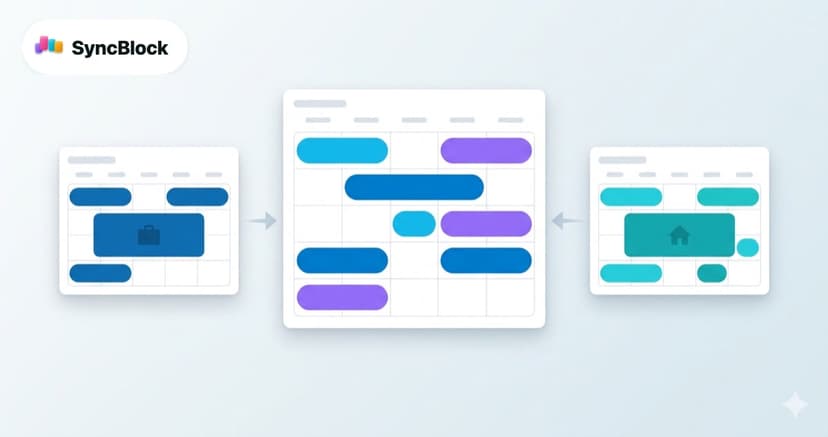
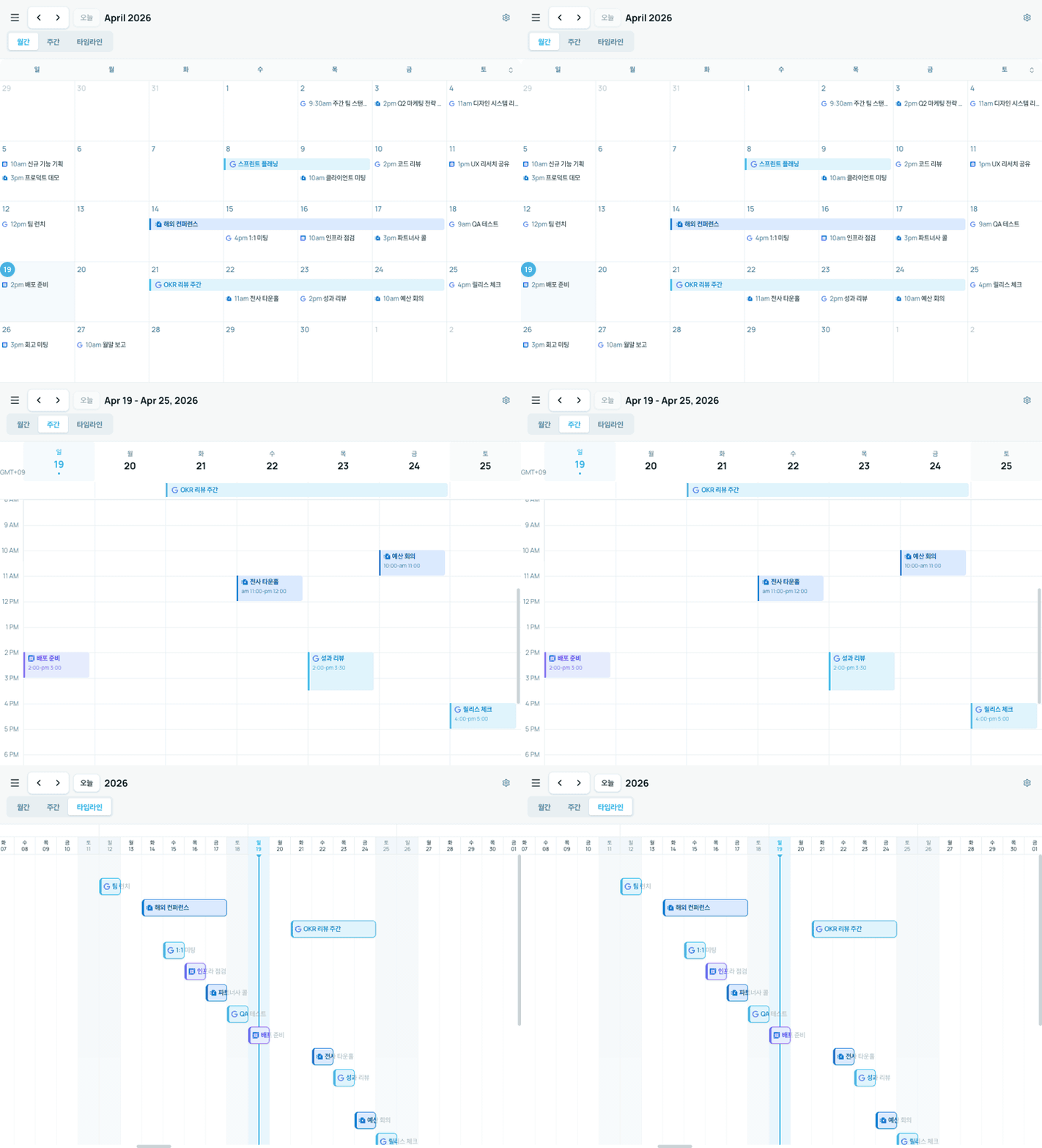
SyncBlock pulls Google Calendar and Outlook directly from each account into a single view. There is no sync between the two services, so sync errors don't exist in the first place.
- Sources stay intact — Google events live in Google, Outlook events live in Outlook. SyncBlock just combines them into a view.
- Edits land on the source — events created in SyncBlock save directly to the chosen source calendar. No duplicates.
- One side down, the other still works — if Google has an issue, Outlook events keep showing, and vice versa.
Frequently asked questions
Q. Outlook events show up one hour off in Google Calendar.
This happens when the two accounts use different time zones. Make sure Google Calendar → Settings → General → Primary time zone matches Outlook → Settings → Calendar → Time zone.
Q. Recurring events are only partially visible in a subscribed calendar.
ICS subscriptions sometimes fail to interpret parts of a repeat rule (RRULE). Complex patterns like "the second Tuesday of every month" are especially prone to issues. For important recurring events, consider entering them manually instead of subscribing.
Q. My company blocks the Outlook connection. Can I work around it?
If IT policy blocks it, a workaround isn't advisable. A better path is explaining the need for a unified calendar tool like SyncBlock to your admin and asking for official approval. SyncBlock uses only standard OAuth scopes, so it holds up well under security review.
Wrap-up
Most sync issues start with permissions, cache, or network. But when they keep recurring, it's faster to stop "fixing" sync between Google and Outlook and remove sync from the equation altogether. SyncBlock lets you drop both calendars onto one screen immediately — no more waiting on sync.