What Remote Workers Should Look for in a Calendar App
Without office cues to mark the day, your calendar becomes the actual time structure. Five things to check when picking a tool.
The calendar matters more when you work remote
In an office, time keeps flowing even without a calendar. The coworker getting up next to you, people heading to the conference room, the lunch-time buzz — environmental cues that build the rhythm of the day on their own.
Remote work strips all of that away. Sitting down at your desk feels the same whether it's 9 AM or 11 AM, and skipping lunch somehow makes it 3 PM. So the calendar steps in to replace those missing environmental cues.
For remote workers the calendar isn't just "a place to log events". It's the tool you use to design the rhythm of the day. Five criteria for picking one that's up to that job.
1. Work and personal events on one screen
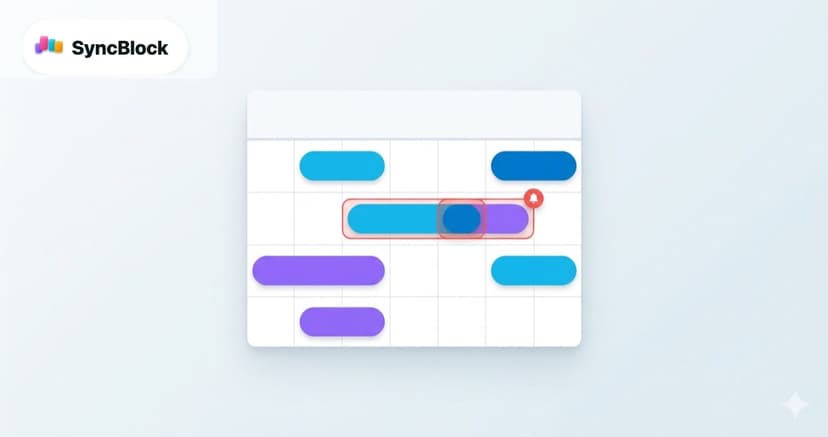
Remote work is where the line between work and personal blurs the most. A quick clinic visit after lunch, a 4 PM school pickup, a 7 PM side-project meeting — keep these in separate calendars and they'll collide somewhere.
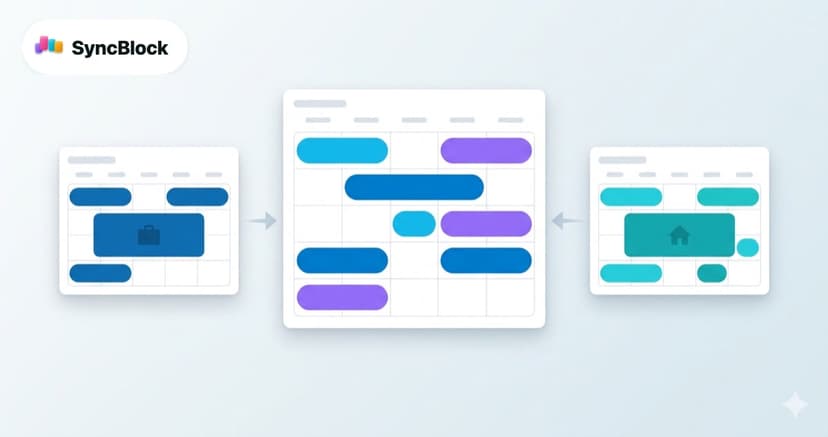
Pull them onto one screen and the following becomes obvious:
- If a work meeting runs long, the conflict with pickup shows immediately
- An empty morning slot becomes available for a workout or laundry
- On evenings with a side project, you start consciously closing work earlier
This is why a unified-view tool like SyncBlock fits remote work especially well. Google, Outlook, and local events on one screen, but with color and icon distinguishing the source — merged but not mixed.
2. Time-slot views are non-negotiable
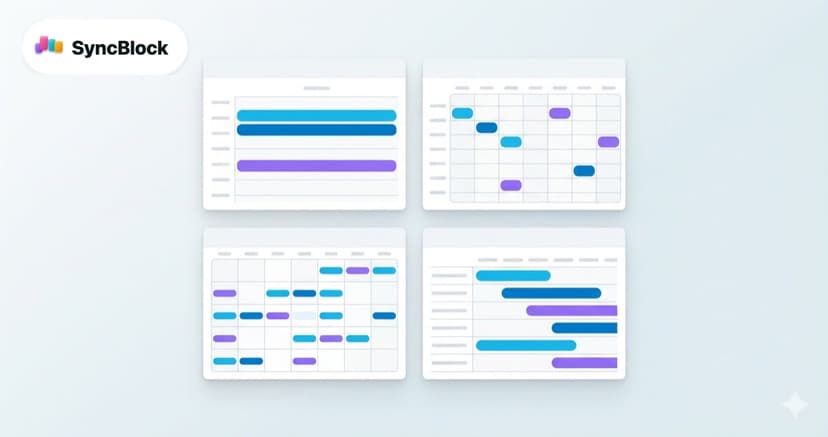
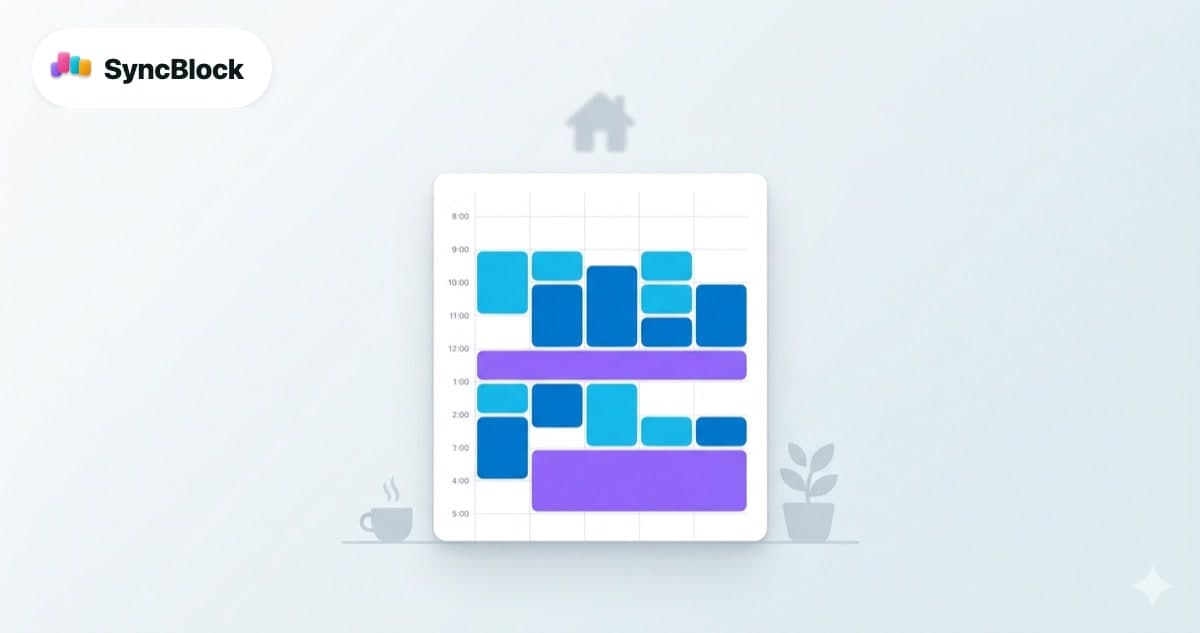
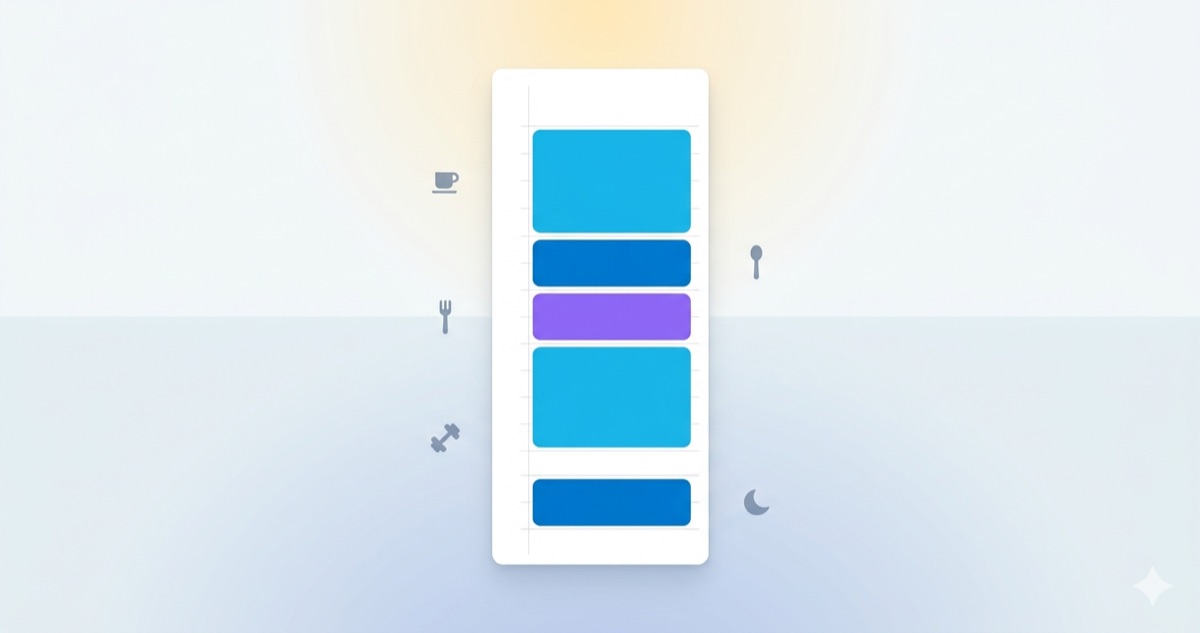
In an office, month view is roughly enough — you only need to catch the meetings. Remote work is different. You have to design your own morning focus, lunch, exercise, breaks, afternoon focus, evening shutdown blocks.
That makes week and day views essential. You need a view where time runs vertically so you can:
- Block 9–11 AM as "deep work"
- Spot 30-minute gaps between meetings instantly
- Visually guarantee that lunch and breaks aren't getting skipped
Tools that only offer month view are unfit for remote work. You need at least week and day views, and switching between them must be cheap.
3. Time-boxing and followups in one place — tasks "inside" blocks
For remote work, solo work blocks take up most of the day, not meetings. But blocking time on the calendar while keeping the tasks elsewhere means when the time arrives, you start with "what was I supposed to do again?"
The fix is putting the tasks directly inside the time block. If your "morning deep work" block contains three checkboxes for the work you're going to do, you start the moment the block begins, no decision cost.
SyncBlock's subtasks-inside-events do exactly this.
4. Lightweight schedule sharing
Remote teams can't check "is so-and-so at their desk?" directly. The calendar steps in as the proxy. When teammates can see your meetings and focus blocks, they naturally adjust when to message and when to expect a reply.
What to look for:
- Quick share for a single event — sharing a whole calendar is heavy; sharing one meeting link is what you need most
- Does the recipient need to log in? — for external clients, login-free is the only practical option
- Are private events auto-hidden? — so you don't have to scrub doctor's appointments and 1:1s by hand
SyncBlock supports per-event share links, opens login-free, and is excluded from search engine indexing.
5. Mobile keeps the same flow
Remote work means more time away from the desk than office work. Meetings on the laptop, but on the move — coffee shops, walks — you're on phone. If the mobile experience is weak, the calendar dies the moment you stand up from the desk.
Mobile checklist:
- Core features (view switching, event creation, subtasks) work on mobile
- Adding a new event takes 1–2 taps
- Notifications hook into the OS notification center for real, not just browser tab badges
SyncBlock supports the same four views, subtasks, and sharing on mobile web. No app install required — works in the browser.
Summary: five things remote workers should check
- Work and personal events unified on one screen
- Week and day views (time slots visible)
- Tasks/subtasks inside the time block
- Lightweight share (login-free)
- Same flow on mobile
Getting started with SyncBlock
SyncBlock is built to satisfy all five from day one. Connect Google and Outlook over OAuth, and the four views, subtasks, sharing, and mobile experience are all on by default. Free to start.
More to read
- Safely merging work and personal calendars — How to Safely Merge Work and Personal Calendars
- The operating guide for view switching — Day, Week, Month, Timeline: Using Calendar Views Right
- Tasks pinned inside time blocks — From Event to Task: Calendar and To-Do on One Screen