Stop the Scheduling Ping-Pong: Share Your Calendar With One Link
Instead of five rounds of "what times work for you?", end the thread with a single link that reflects both your Google and Outlook schedules.
Why scheduling takes so long
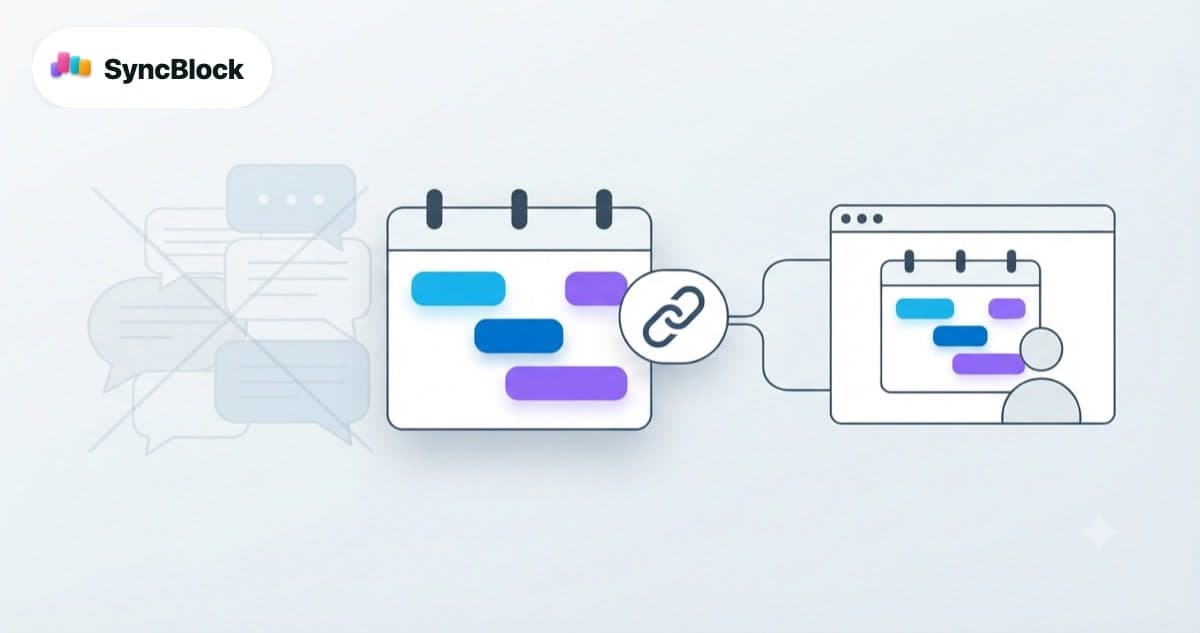
"What times work for you next week?" — everyone knows the email thread that starts with that sentence and drags on for five or six replies. Booking a single meeting takes days for one simple reason: neither side can see the other's calendar. The fix is just as simple — send one calendar sharing link and let the other person pick from your actual open slots.
Three ways to coordinate, compared
- Screenshot of your calendar — outdated the moment you take it. Anything booked afterward isn't reflected, and personal event titles leak right into the image.
- Google Calendar sharing invite — requires the other person to have a Google account and hands over access to a whole calendar. And your Outlook events aren't in there anyway.
- A scoped sharing link — pick a date range and the calendars to include, share one URL. The recipient opens it in a browser with no login, and it always shows your current schedule.
The trap: sharing only one calendar creates fake availability
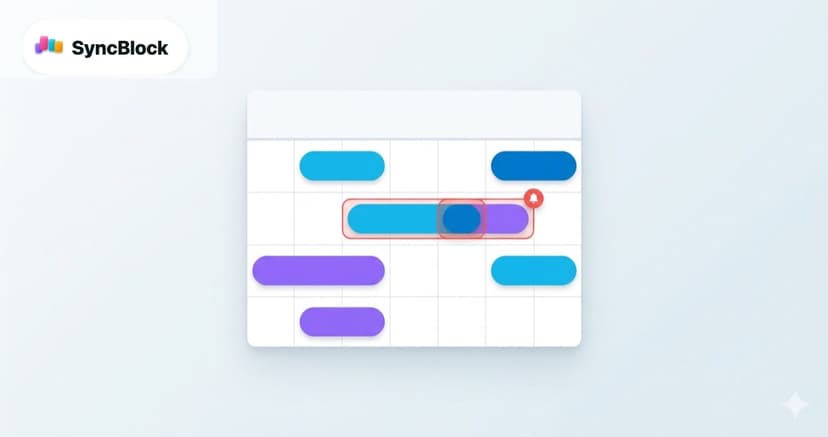
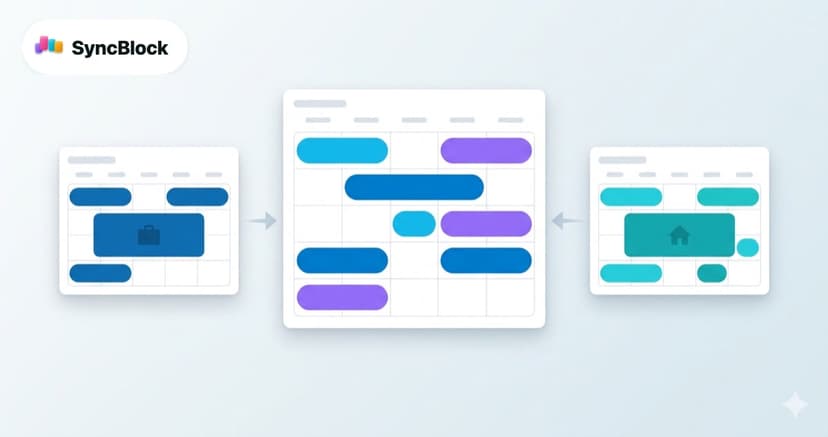
This is the most common way scheduling goes wrong. A slot that looks free on your work Outlook calendar is actually taken by a doctor's appointment on your personal Google calendar. Availability is only real when it reflects both your Google and Outlook events at once.
If double-bookings keep happening on your team, start with five tips for running a conflict-free calendar.
Creating a sharing link in SyncBlock
- Connect your Google and Outlook calendars. Your unified schedule appears on one screen.
- Click the share button above the calendar and pick the date range to share.
- Choose which calendars to include — for example, keep work calendars in and leave personal ones out.
- Hit create link, copy it, and send it over email or chat. The recipient opens it instantly, no account needed.
Every link stays under your control — you can expire it from the link management page the moment the scheduling is done.
Where this shines
- External meetings — it doesn't matter which calendar service the other side uses. A browser link works for everyone.
- Freelancers handling clients — show true availability that reflects every client calendar you juggle. Pairs well with managing multiple client calendars as a freelancer.
- Recurring syncs with outside collaborators — share one long-range link once instead of asking every time.
Frequently asked questions
Q. Does the recipient need a SyncBlock account?
No. Sharing links open in any browser without login. Requiring nothing from the recipient is the whole point of the link approach.
Q. Can people see my event titles and details?
You choose which calendars go into the link, so leave sensitive ones out. For scheduling purposes, sharing only work calendars is usually enough.
Q. If my schedule changes after sharing, does the link update?
Yes. A sharing link is a live view, not a snapshot — every time it's opened, it renders your current schedule.
Q. I sent a link to the wrong person. Can I revoke it?
Yes — expire it from the link management page and it stops opening immediately.
Wrapping up
The bottleneck in scheduling isn't the conversation — it's information asymmetry. Merge your Google and Outlook calendars into one view, scope a date range, and share it as a link. The "what times work for you?" thread collapses into a single URL. From connecting calendars to sending your first link, SyncBlock takes about five minutes.