A Multi-Client Calendar Playbook for Freelancers
Different clients, different calendars, different time zones. Five rules for making "is Tuesday afternoon free?" a one-second answer.
A freelancer's calendar runs differently
Employees can get by with one calendar. Outlook or Google, all events live in a single account. Freelancers and agencies can't do that. Each client provides a different workspace — some Google, some Outlook, some on their own tools.
With events scattered across four or five calendars, the same accidents happen on repeat:
- You book a slot with client B that you'd already promised to client A (double-booking)
- Answering "is next Tuesday afternoon free?" takes four logins
- At month end, reconstructing "how many hours did I spend on which client?" is nearly impossible
Five operating principles for keeping a multi-client calendar stable. The tooling matters, but the operating model matters more.
1. Bring all client calendars onto one screen
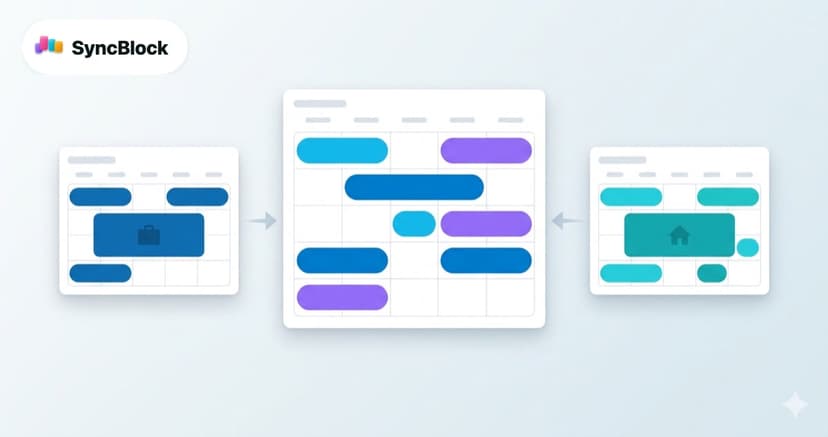
First problem to solve. Logging in four times to check four times will not last. The starting point is a setup where all client events show on the same screen at the same time.
Two paths:
- ICS-subscribe each client calendar into your main one— familiar, but ICS lag is significant. Newly-booked meetings arriving hours late kills the value.
- Direct OAuth via a unified-view tool — connects to each calendar live and displays in real time. Originals stay in each client's workspace.
SyncBlock takes the second path. Connect 4–5 Google and Outlook accounts each via OAuth login, and every event shows up on the same calendar in real time.
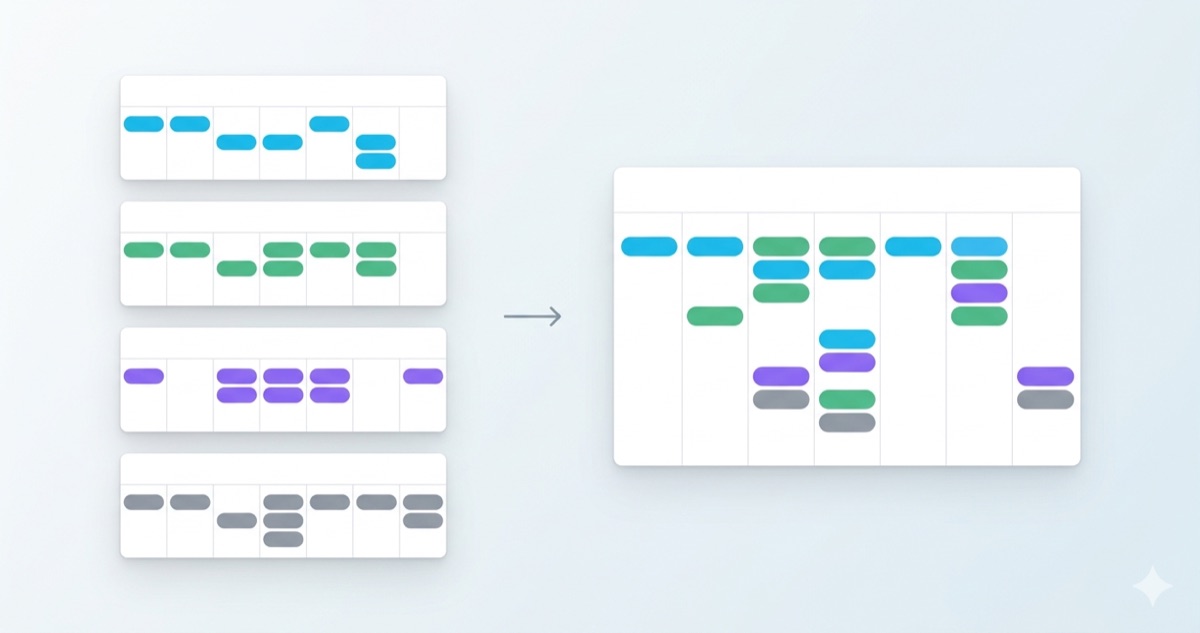
2. Lock in a color per client for instant identification
Putting everything on one screen creates a new problem — telling which event belongs to which client. Wrong Zoom links, opening the wrong client's docs, follow.
The fix: fixed color per client:
- Client A → blue
- Client B → green
- Client C → purple
- Personal → gray
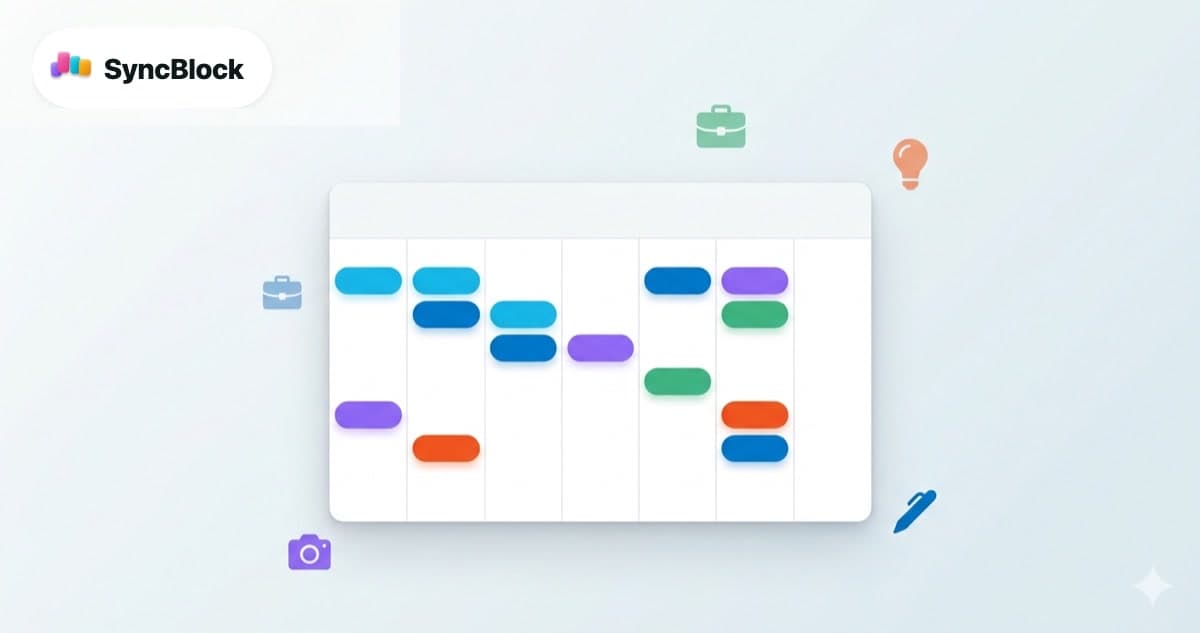
Once set, a glance at the calendar tells you the distribution immediately — "today is two A's and one B". When evaluating a tool, check whether per-calendar colors are user-configurable.
3. Answer "when are you free?" in one second
The classic line in a freelancer's inbox: "Let me know what works Tue/Wed/Thu next week." To answer it you have to cross-reference four calendars in your head. Five minutes per email adds up to scheduling becoming a job.
Structural fixes:
- Week view must show all calendar events together — open slots become visually obvious
- Conflict detection runs automatically — so you don't answer "available" for a slot that's actually overlapping with another client
- Buffer time visible — 5 minutes between Zoom calls, 10 minutes for client context-switching, automatically rendered as visible margin
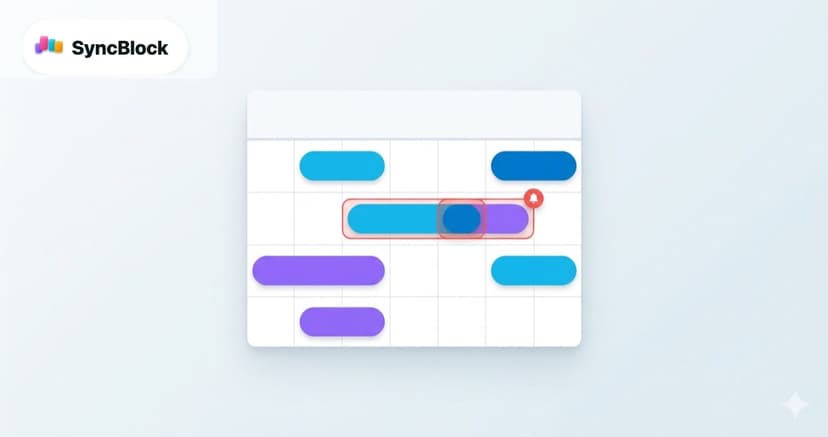
SyncBlock's week view shows every connected calendar at once, and any timed events that overlap by even a minute get a red border automatically. Five seconds to verify before answering "yes". One step further, you can skip the reply entirely — send a scoped link as described in sharing your calendar availability with one link and let clients check your open slots themselves.
4. Pin meeting followups to the meeting itself
Context-switching cost explodes as you add clients. If a task can't be traced back to which meeting / which client it came from, every Monday starts with "wait, what was I supposed to do?"
Fix: pin followup tasks inside the meeting. The last minute of a meeting, drop 3–5 actions in as subtasks. Weeks later the meeting title still sits next to the task — context intact.
This pays off directly at month-end billing. With each client's meetings and tasks accumulated inside the calendar, billing becomes a calendar review rather than a separate tracking exercise.
5. Make changes only in the original client calendar
It's tempting to change times or cancel meetings from the unified view, but doing so risks drifting out of sync with the client's system. The rule:
- View, search, find free time → unified view
- Book, change, cancel → that client's original calendar
- Personal memos / deadlines → unified view's local calendar (visible to no client)
That way, what each client sees on their calendar is always produced by their own system — no traces of an external tool getting in the middle. It builds trust over time.
Summary: the freelancer's 5 rules
- All client calendars on one screen
- Fixed color per client for instant source ID
- Week view + auto conflict detection — answer free-time questions in seconds
- Pin followup tasks inside the meeting to preserve context
- Make changes only in the original client's calendar
Getting started with SyncBlock
SyncBlock is designed to satisfy all five. Connect multiple Google and Outlook accounts at once; per-calendar colors are configurable; overlapping events get auto-marked with a red border; subtasks live inside events. Free to start, and adding a new client is one OAuth flow.
More to read
- The safe approach to merging multiple calendars — How to Safely Merge Work and Personal Calendars
- How conflict detection works under the hood — 5 Practical Ways to Prevent Calendar Conflicts
- Operating model for pinning followups inside meetings — From Event to Task: Calendar and To-Do on One Screen