Time Blocking 101: Design Your Day on a Calendar
If half your to-do list survives every day, the method is the problem. How to start time blocking with a few 90-minute blocks — beginning with seeing all of your time on one screen.
Why your to-do list never survives until evening
If the list you wrote in the morning is still half-full at night, the problem is probably the method, not your willpower. A to-do list decides what to do but never when — and work that has no time assigned to it gets pushed into the gaps between meetings. There are always fewer gaps than you think.
Time blocking flips the order. Instead of stacking tasks on a list, you assign them to blocks of time on your calendar in advance. The moment "write the report" stops being a line on a list and becomes Tuesday 9–11am, that time is protected from meeting invites — and the real capacity of your day becomes visible.
The three reasons time blocking fails
The method is simple, yet most people abandon it within a week. It is almost always one of these three.
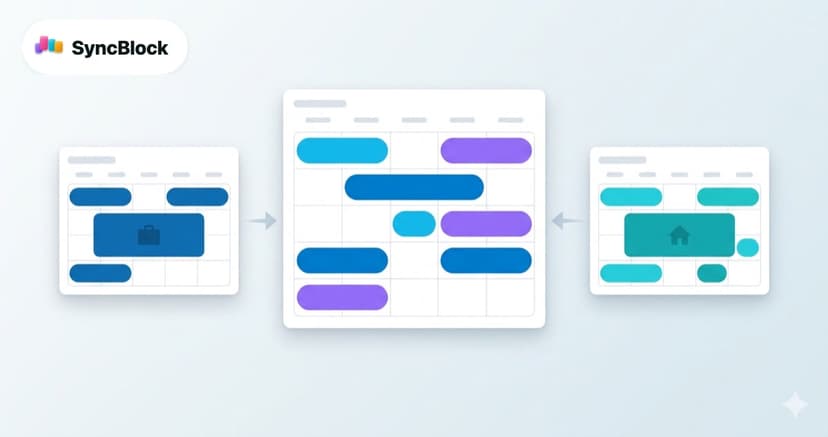
- You can't see your real free time — with work on Outlook and personal plans on Google Calendar, no single screen shows the truth. You block time that looks free, it collides with a meeting on the other calendar, and the whole plan collapses.
- The blocks are too small — a day sliced into back-to-back 30-minute pieces falls like dominoes at the first delay. Start with three or four blocks of 90 minutes to 2 hours.
- Planning and doing live on different screens — the plan sits in the calendar while the actual tasks sit in another app, so the plan disappears from view exactly when you start working.
Three steps are enough to start
1. Get every calendar onto one screen
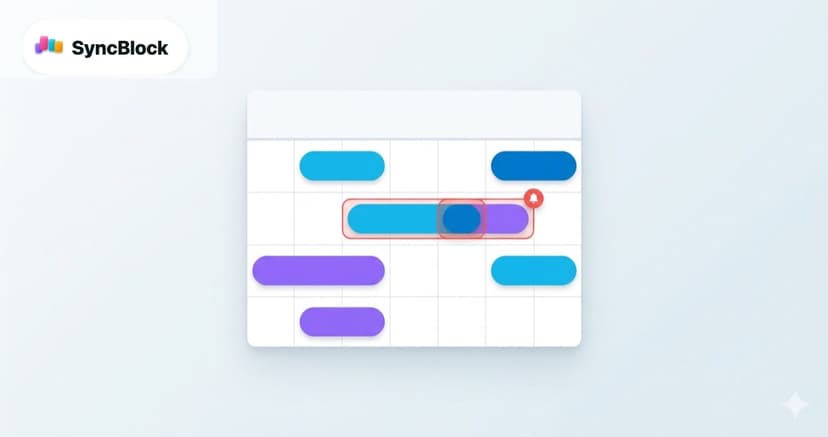
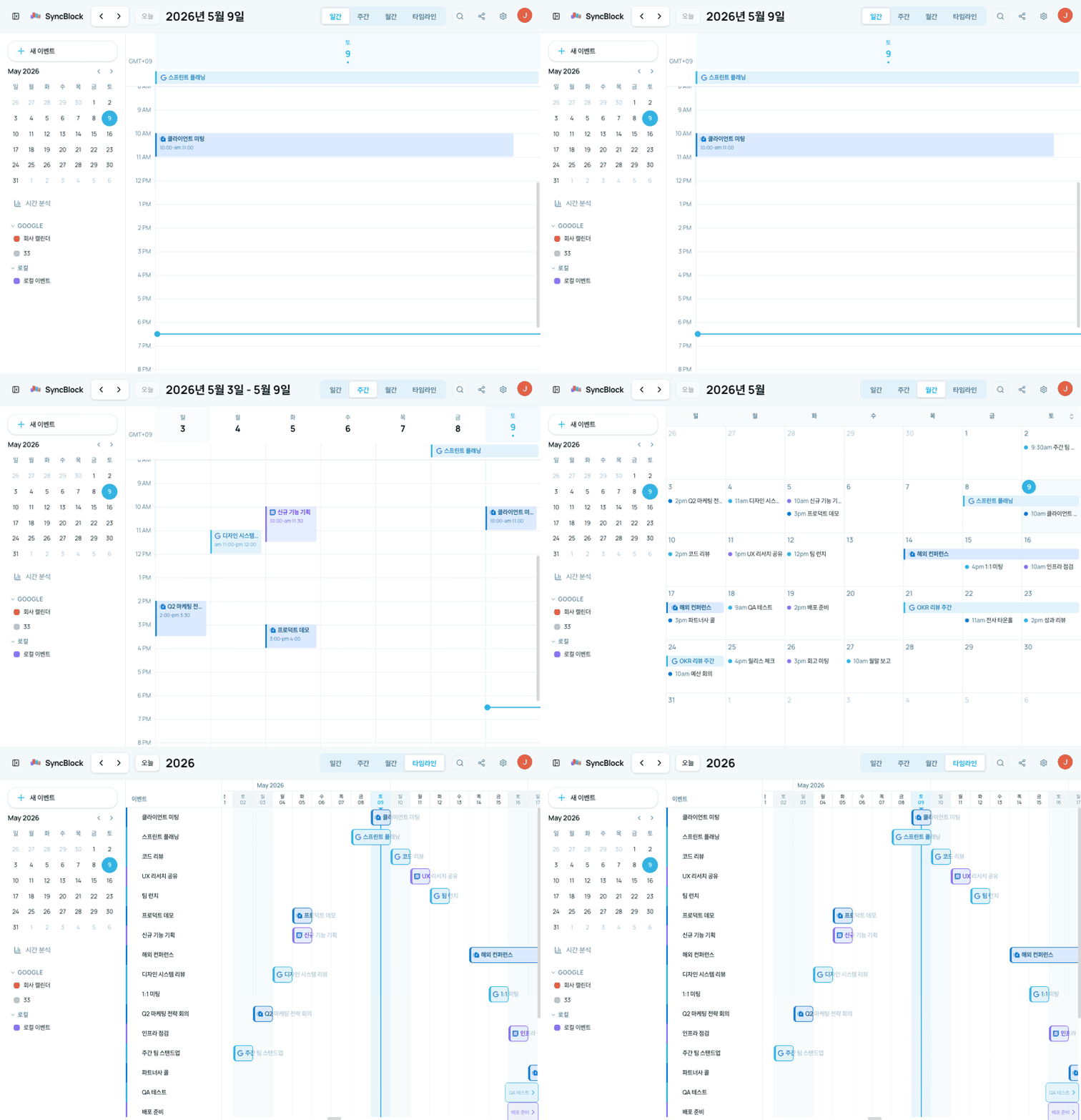
Time blocking presupposes that all of your time is visible. If work Outlook and personal Google live apart, merge the view first. SyncBlock connects Google and Outlook accounts directly and draws every event on one screen, with automatic conflict marks on anything that overlaps — so a block placed on "free" time can no longer silently collide with a meeting from the other calendar.
2. Fixed events first, blocks in what remains
Meetings, pickups, workouts — the immovable things go in first. Then place the heaviest work in whatever remaining slot matches your best energy. If mornings are when you focus, guard the morning block for deep work, not for calls.
3. Plan in week view, execute in timeline view
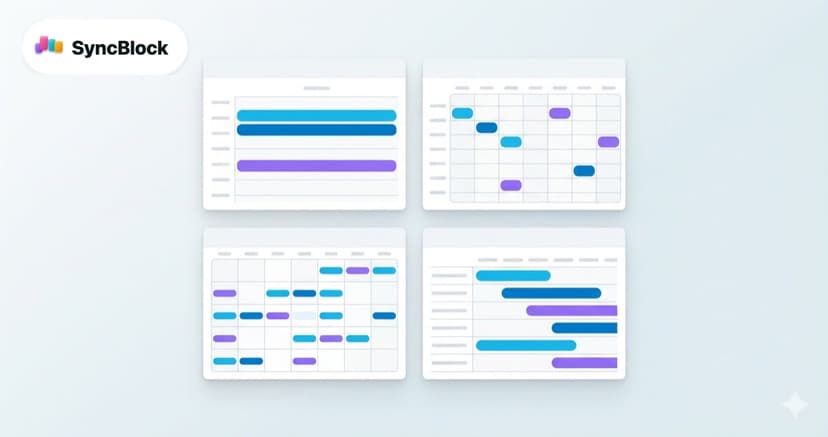
Planning works best where the whole week is visible at once. On the day itself, a timeline view that flows hour by hour is the better cockpit: you always see the current block and how long until the next one.
Time blocking vs time boxing
A close cousin is time boxing. Time blocking reserves time for a task ("I do this work in this slot"); time boxing puts a ceiling on it ("this task ends when this slot ends"). Use boxing for open-ended work like email triage and research, blocking for deep work like writing and coding. On the calendar, both look the same: a block.
Keep the tasks inside the block
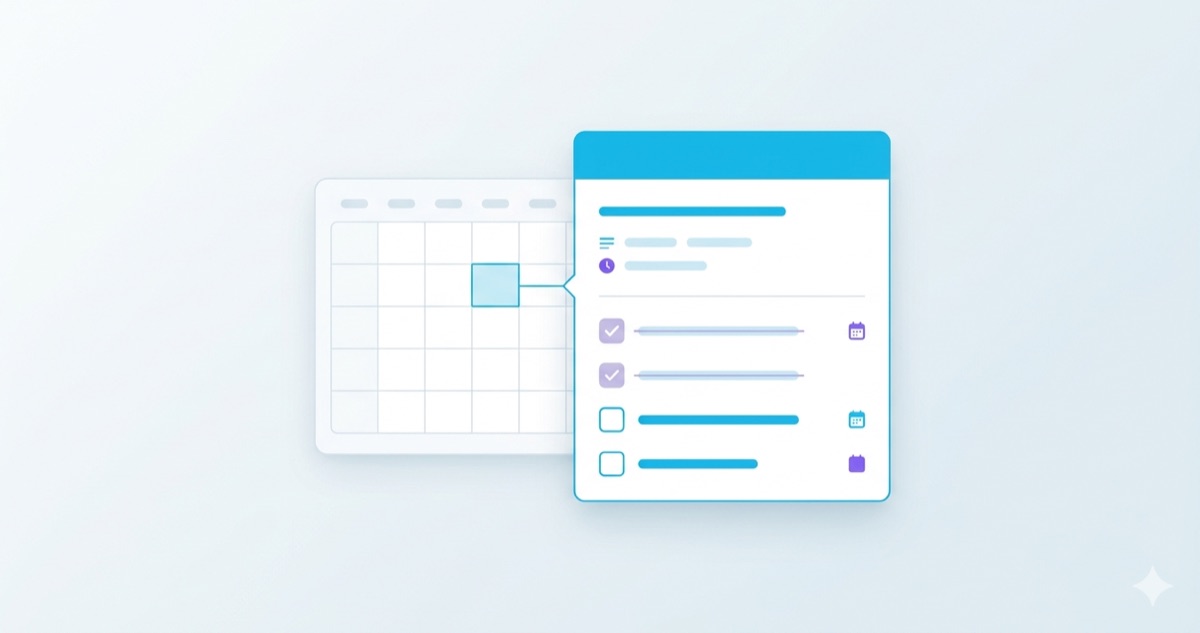
The easiest way to honor a block is to keep its work inside it. In SyncBlock you can add tasks (subtasks) directly inside an event, so opening the "Tuesday report block" shows the checklist that belongs to those two hours. When plan and work share one screen, there is no other app to escape to.
A one-week experiment
- Connect every calendar into one view (5 minutes)
- Check this week's fixed events, then place only two or three 90-minute blocks per day
- Write 1–3 tasks inside each block
- When a block slips, move it to the next free slot instead of feeling guilty — a block is a plan, not a promise
- On Friday, look only at which blocks held
Further reading
- Choosing a planning view vs an execution view — Month, Week, Day, Timeline: Using Calendar Views Properly
- Managing tasks inside your blocks — From Event to Task: Calendar and To-Dos on One Screen
- Keeping blocks from colliding with meetings — 5 Practical Ways to Prevent Calendar Conflicts
In short
Time blocking needs no special toolkit — just one calendar that shows all of your time, and a few 90-minute blocks. If split work and personal calendars are what stops you at step one, start by merging them into one view with SyncBlock: it's free to start, and connecting each account takes one sign-in.