Google Calendar vs Outlook vs SyncBlock: Which Calendar App Fits You?
The three calendar apps most people choose between, compared on the criteria that actually change day-to-day use — integration, sync, and what happens when you live in two ecosystems at once.
Why picking a calendar app is harder than it looks
On the surface every calendar app is the same. Month and week views, an add-event button, a reminder that fires ten minutes early. The difference only shows up once you use one for a few weeks — and it almost always comes down to a single question: how well does it sit next to everything else you use?
The most common setup is also the most awkward one: Outlook at work, Google Calendar for everything else. Two calendars, two logins, and a recurring decision about which one is the "real" one.
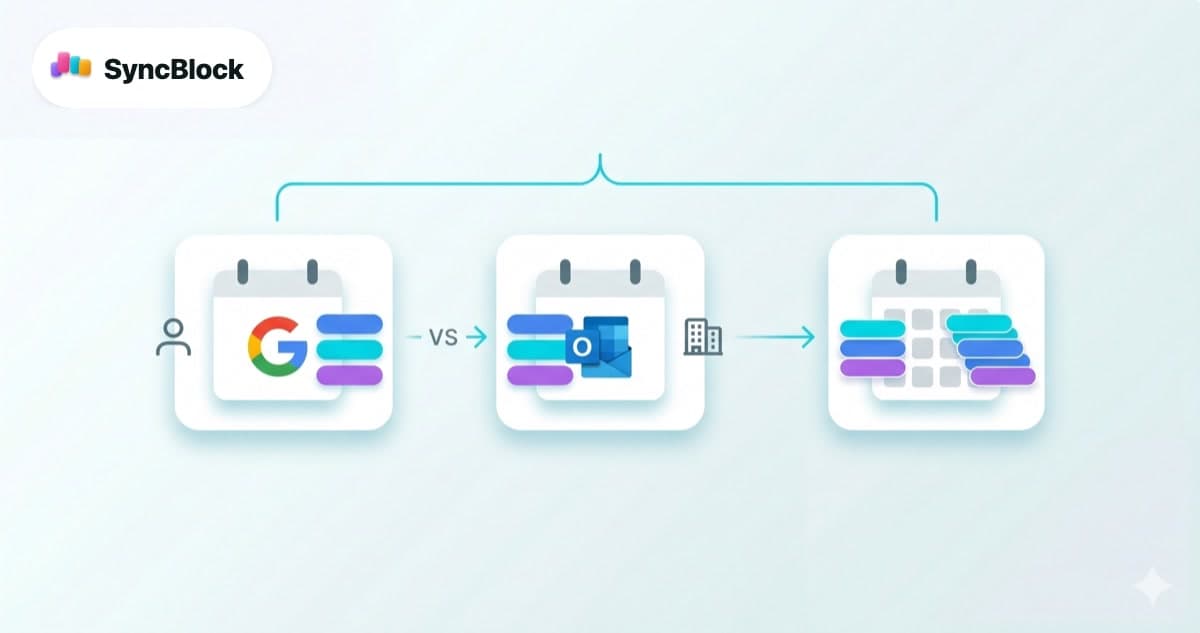
This guide compares the three options most people actually end up choosing between — Google Calendar, Microsoft Outlook, and SyncBlock — against the same criteria, so you can tell which one fits your situation instead of the average person's.
Google Calendar — the personal default
Gmail and Android integration is smooth enough that Google Calendar is effectively the standard for personal use. Free, web-based, and easy to share: there is almost no barrier to starting.
- Strengths — Gmail integration (flights and bookings land on the calendar automatically), fast sharing, Google Meet built in, flexible colors and notifications
- Weaknesses — Outlook events can only come in as an ICS subscription, which is not real time. No room booking, no org chart, no free/busy lookup across a Microsoft tenant
- Best for — people whose schedule is mostly personal, and whose team collaboration already happens inside Google Workspace
Microsoft Outlook Calendar — the work default
In a Microsoft 365 company there is not much of a choice to make. Teams meetings, meeting rooms, out-of-office replies and the org chart all revolve around Outlook.
- Strengths — room and resource booking, automatic Teams meeting links, out-of-office handling, scheduling that knows who reports to whom
- Weaknesses — no officially supported two-way sync with a personal Google Calendar. The mobile experience is heavier than Google's
- Best for — employees whose calendar is mostly work, in an environment where IT policy fixes Microsoft 365 in place
SyncBlock — a unified view on top of both
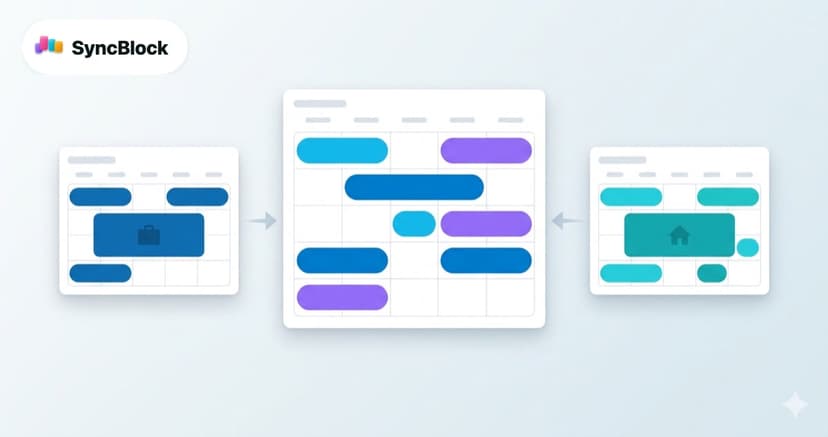
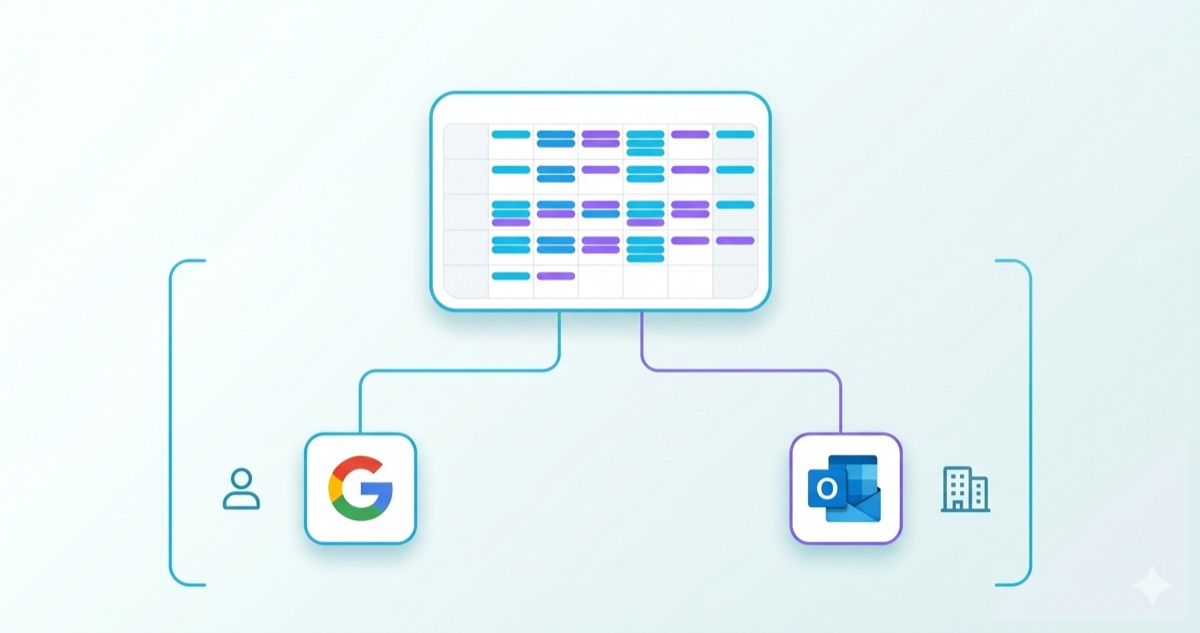
SyncBlock does not try to sync Google and Outlook into each other. It connects to both accounts and draws their events, as they are, on one screen. The classic failure modes of two-way sync — lag, duplicated events, a broken connector that silently stops — never get a chance to happen, because nothing is being copied anywhere.
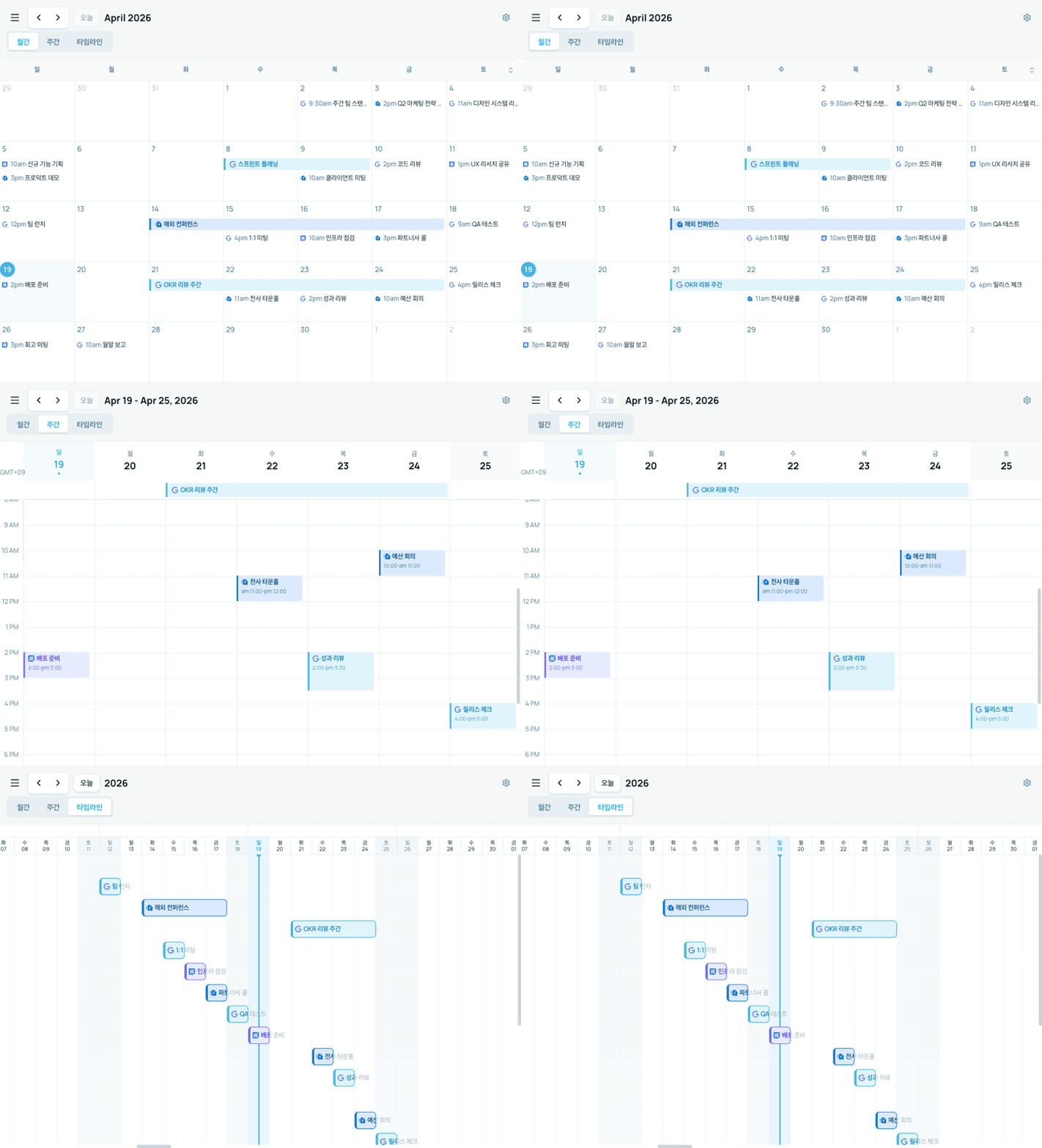
- Strengths — Google, Outlook and local events on one screen, a source icon (G / O) on every event, three views to switch between (month, week, timeline), and tasks you can create from inside an event
- Weaknesses — it does not replace either service; the originals stay where they are. Microsoft 365-only features such as room booking still happen in Outlook
- Best for — anyone running work Outlook and personal Google side by side, and freelancers juggling several client calendars
Side by side
| Criteria | Google Calendar | Outlook Calendar | SyncBlock |
|---|---|---|---|
| Price | Free (paid Workspace tiers) | Microsoft 365 subscription | Free to start |
| Shows Google Calendar | Native | ICS subscription (delayed) | Direct connection, live |
| Shows Outlook Calendar | ICS subscription (delayed) | Native | Direct connection, live |
| Two-way sync | Limited | Limited | Not needed — originals shown in place |
| Telling sources apart | Manual colors | Manual colors | Source icon, automatic |
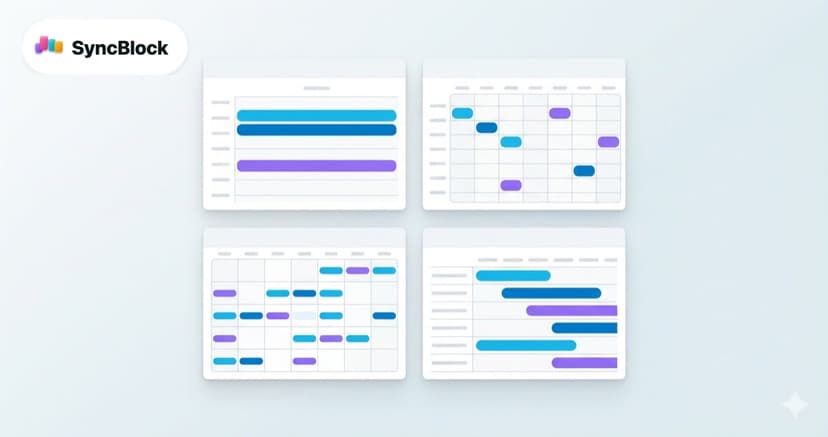
| Views | Month / week / day | Month / week / day | Month / week / timeline |
| Tasks and subtasks | Separate Google Tasks | Separate To Do | Inside the event |
| Room booking / Teams | Not supported | Native | Done in Outlook |
| Where your data lives | Stored by Google | Stored by Microsoft | Stays in the original service |
Which one fits your situation
Outlook at work, Google at home
The most common combination, and the one that punishes you for picking a single winner. Force everything into Outlook and your personal events arrive late; force everything into Google and your work events do. The least painful answer is to leave both calendars exactly where they are and put a unified view on top of them — which is the gap SyncBlock was built for.
Freelancers and agencies with several client calendars
Clients hand out their own Google Workspace seats or Outlook accounts, so your schedule ends up split across four or five logins. Answering "when are you free next week?" then means checking each one and hoping you did not miss anything. The more sources you carry, the more a single combined view is worth.
A Microsoft 365 team working internally
If everyone around you lives in Teams, books rooms, and relies on the org chart, Outlook stays the center of gravity. With few personal events to reconcile, a unified view may be solving a problem you do not have.
A team standardized on Google Workspace
If the whole team is on Google and external collaboration happens there too, Google Calendar alone is enough. Revisit this the day you get handed a separate Outlook account.
The fastest way to decide is to try it
A comparison table can only point you in a direction. Putting your own week into an app is what tells you whether it fits. SyncBlock is free to start, and connecting Google and Outlook takes one sign-in each.
Further reading
- How the combined view actually comes together — Google Calendar + Outlook, Managed in One View
- If sync keeps breaking on you — Google Calendar and Outlook Sync Not Working: A Step-by-Step Fix
In short
Google and Outlook are both excellent inside their own ecosystem. Live in both at once and one of them will always be the copy that lags. If you would rather not give either of them up, try viewing them together instead of syncing them — setup is one sign-in per account, and the originals never leave the service they came from.